
Printing Services (Maps and Others)
| Form | Workflow | Outputs | E2E test | Docs |
|---|---|---|---|---|
| Passed | Passed | Passed | Passed | Passed |
- End-to-end test
- 3/3 passed 2026-10-21 (mihud, combined)
- Documentation
- 17 steps, 27 images · Download the DOCX
- Who can apply
- Individual, Organization
- Catalogue ID
- 399
Required documents
- National Registration Card (NRC) (New)
- Certificate of Incorporation / ZDA (if company, church, society) (New)
- Copy of the product to print (New)
Output documents
- Notice of Action (notice-of-action)
- Application form (application)
Test evidence
Printing Services (Maps and Others)
Service documentation · Republic of Zambia · GSB e-Services
| Owner | Survey Department |
| Service key | MLNR/printing-services-maps-and-others |
| Version | service v1, platform a0a302b8 |
| Date | 2026-10-21 |
Generated automatically by the service's end-to-end test run. Every screenshot shows synthetic test data on a local test installation, never real personal data.
This document describes the Printing Services (Maps and Others) service of Survey Department as the platform runs it today. It is generated by the service's end-to-end test: every step below was performed by the test, and every screenshot was taken during that run with synthetic data. Regenerate it with npm run docs:services in the e2e suite; do not edit it by hand.
1. Service summary
| Item | Detail |
|---|---|
| Service | Printing Services (Maps and Others) |
| Owner (MDA) | Survey Department (MLNR) |
| Purpose | Printing services for Maps and Other Products |
| Who can apply | Individual; Organization |
| How to apply | Online on the national e-Services portal, signed in with ZamPass; pay with ZamPay. |
| Fees | Fee set by the office: (variable) |
| Turnaround | 5 working days |
| Validity of the output | N/A |
| Required documents | National Registration Card (NRC) (required) Certificate of Incorporation / ZDA (if company, church, society) (required) Copy of the product to print (optional) |
| Output documents | Notice of Action Application form |
| Legal basis | The Land Survey Act No Chapter 188 of the Laws of Zambia (http://www.parliament.gov.zm/sites/default/files/documents/acts/Land%20Survey%20Act.pdf) |
2. Application process, step by step
The process as configured in the back office:
| Step | Role | Task | Type |
|---|---|---|---|
| 1 | Applicant | Apply | form |
| 2 | System | Generate Document | generate-document |
| 3 | Case Officer | Review | review |
| 4 | Supervisor | Review | review |
| 5 | Case Officer | Inspect Site | inspection |
| 6 | Supervisor | Review | review |
| 7 | Executive | Decision | decision |
| 8 | System | Generate Document | generate-document |
| 9 | System | Notify Client | notify |
Who takes part in this journey: Citizen, Case Officer, Supervisor, Executive, Anyone (public).
Step 1. Find the service
Citizen · National e-Services portal
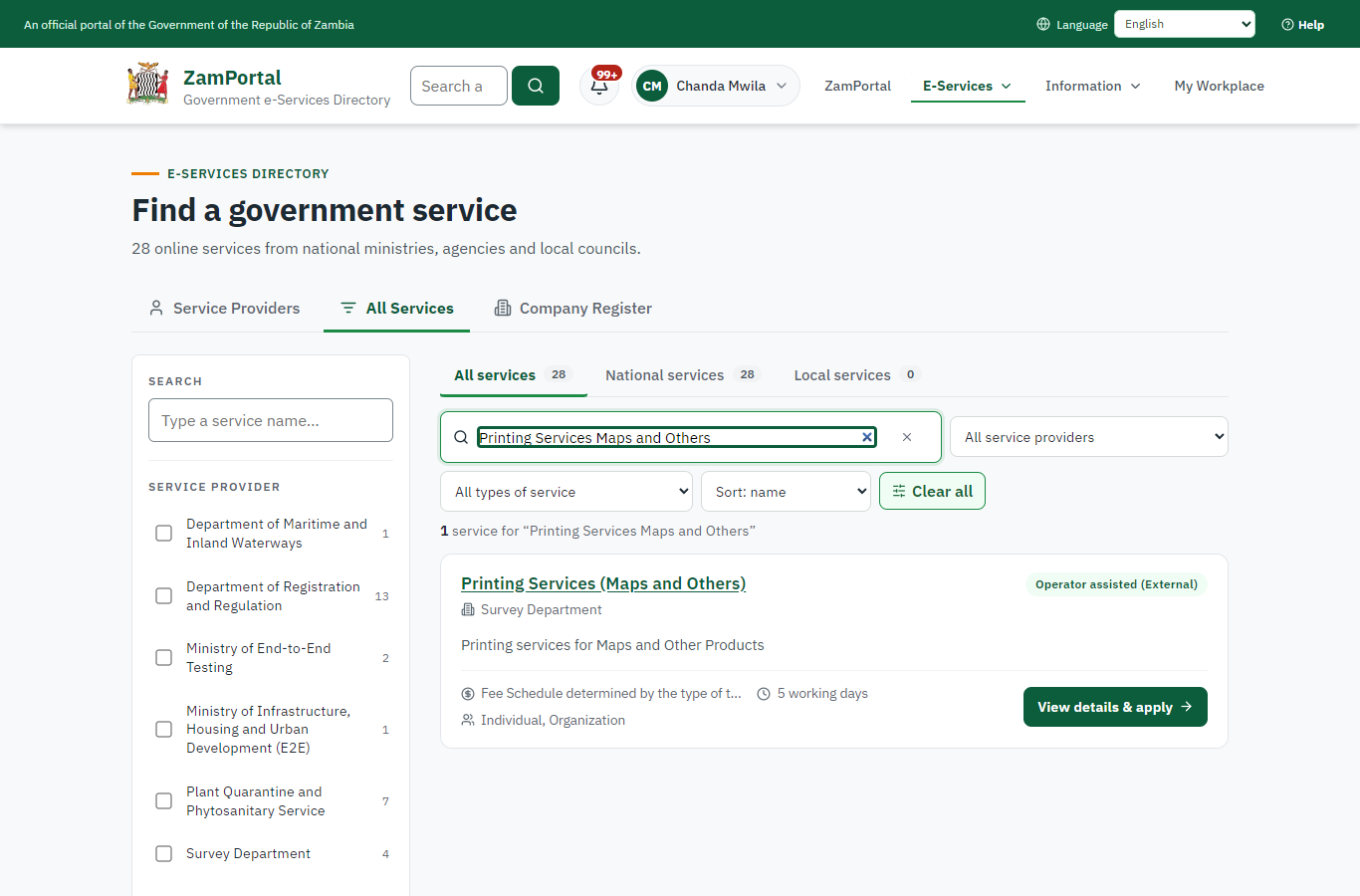
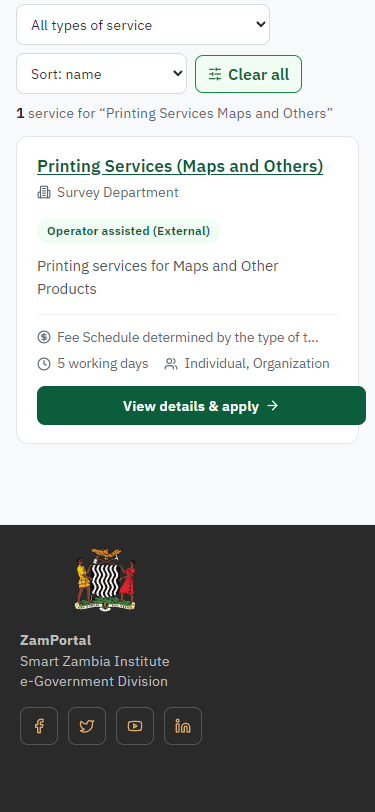
On the national e-Services portal the citizen opens All Services and searches for the service by name ("Printing Services Maps and Others"). Each result names the service and the ministry that provides it.
Step 2. Read the service page
Citizen · National e-Services portal
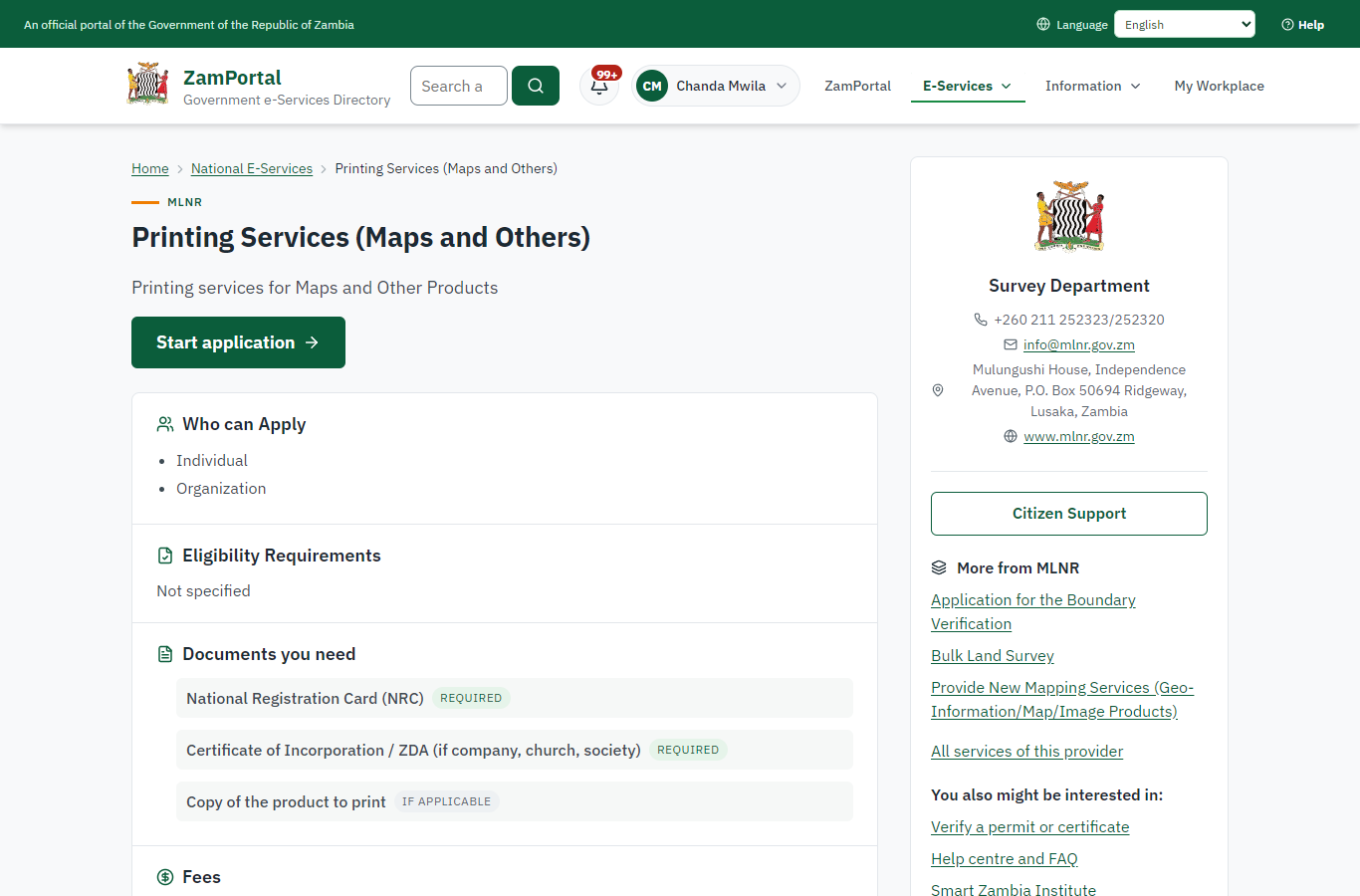
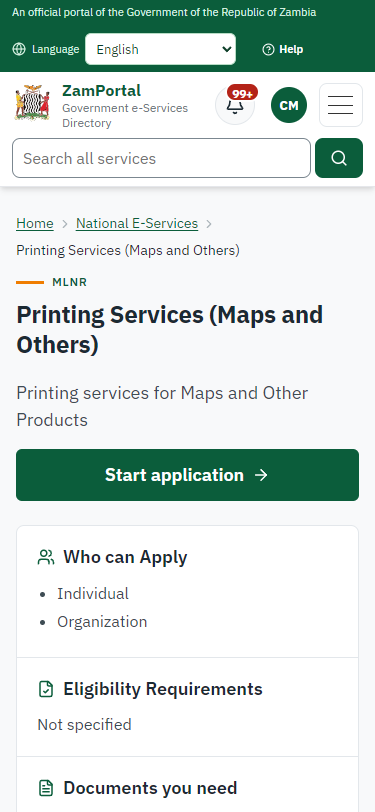
The service page sets out what the service is for, who provides it, the fee, how long it takes and the documents to have ready. "Start application" begins an application (the citizen is signed in with ZamPass).
Step 3. Confirm the applicant details
Citizen · National e-Services portal
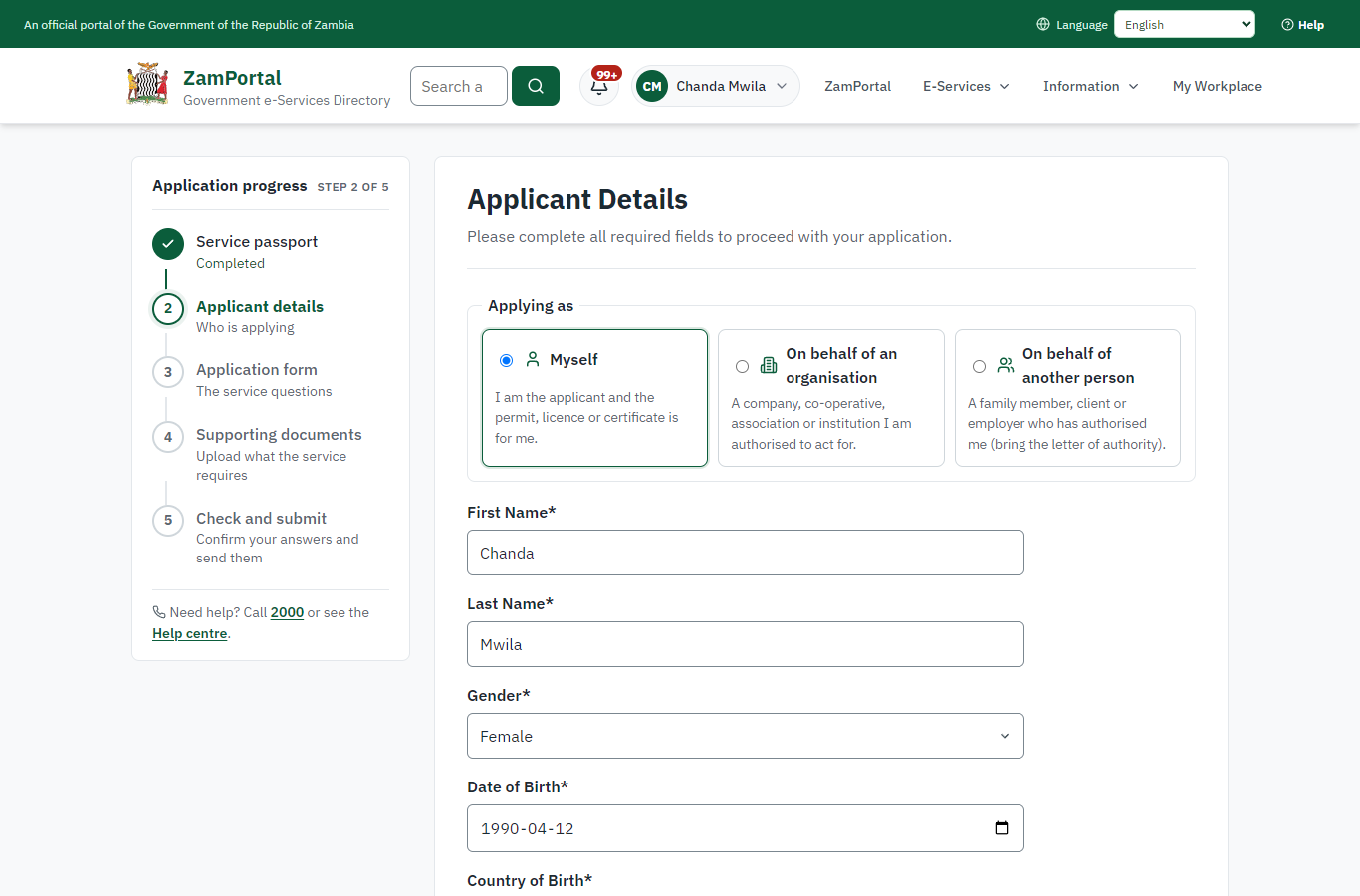
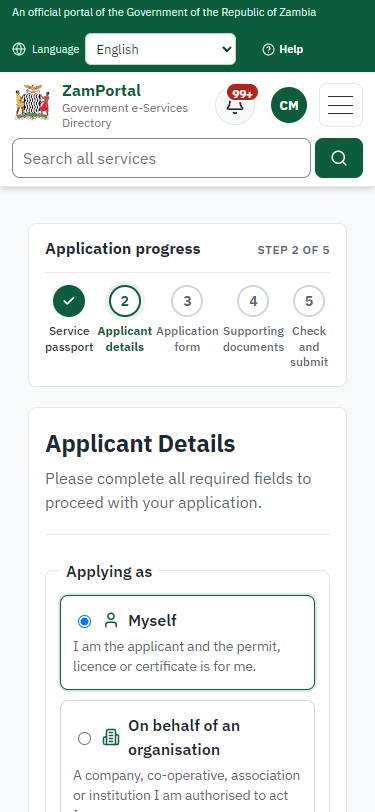
The applicant details are filled in from the citizen's ZamPass account. The citizen says whom they are applying for (themself) and continues with "Proceed to Application".
Step 4. Fill in the application form
Citizen · National e-Services portal
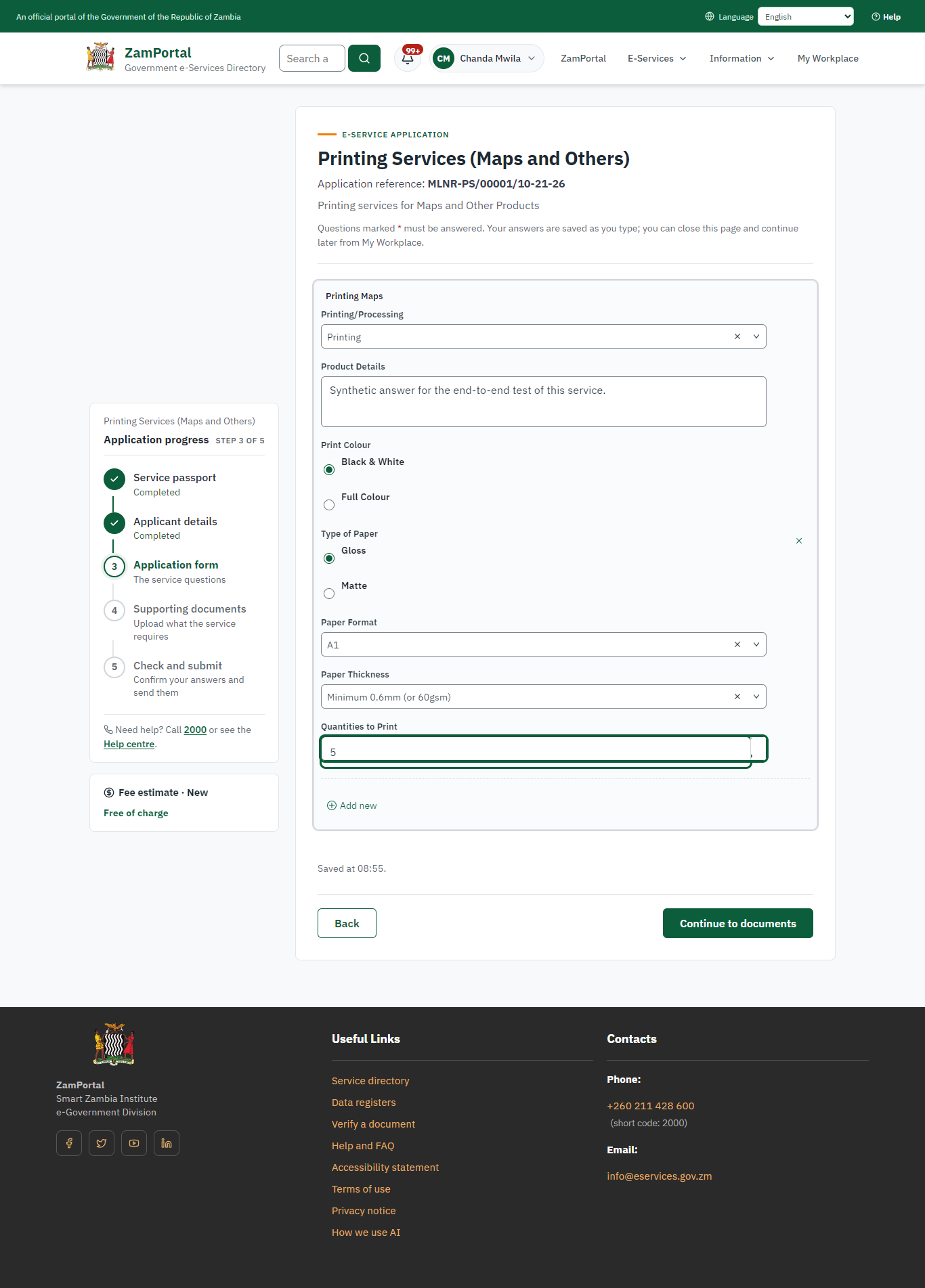
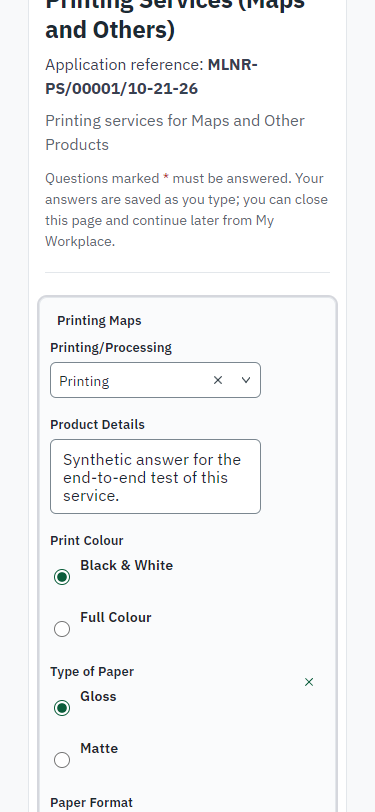
The citizen answers the service's own application form, converted from the legacy system (7 answers in this run, all synthetic), for the type of application "New". Questions marked * must be answered; some appear only after an earlier answer. Answers are saved as the citizen types, so an unfinished application can be reopened from My Workplace.
Step 5. Upload the supporting documents
Citizen · National e-Services portal
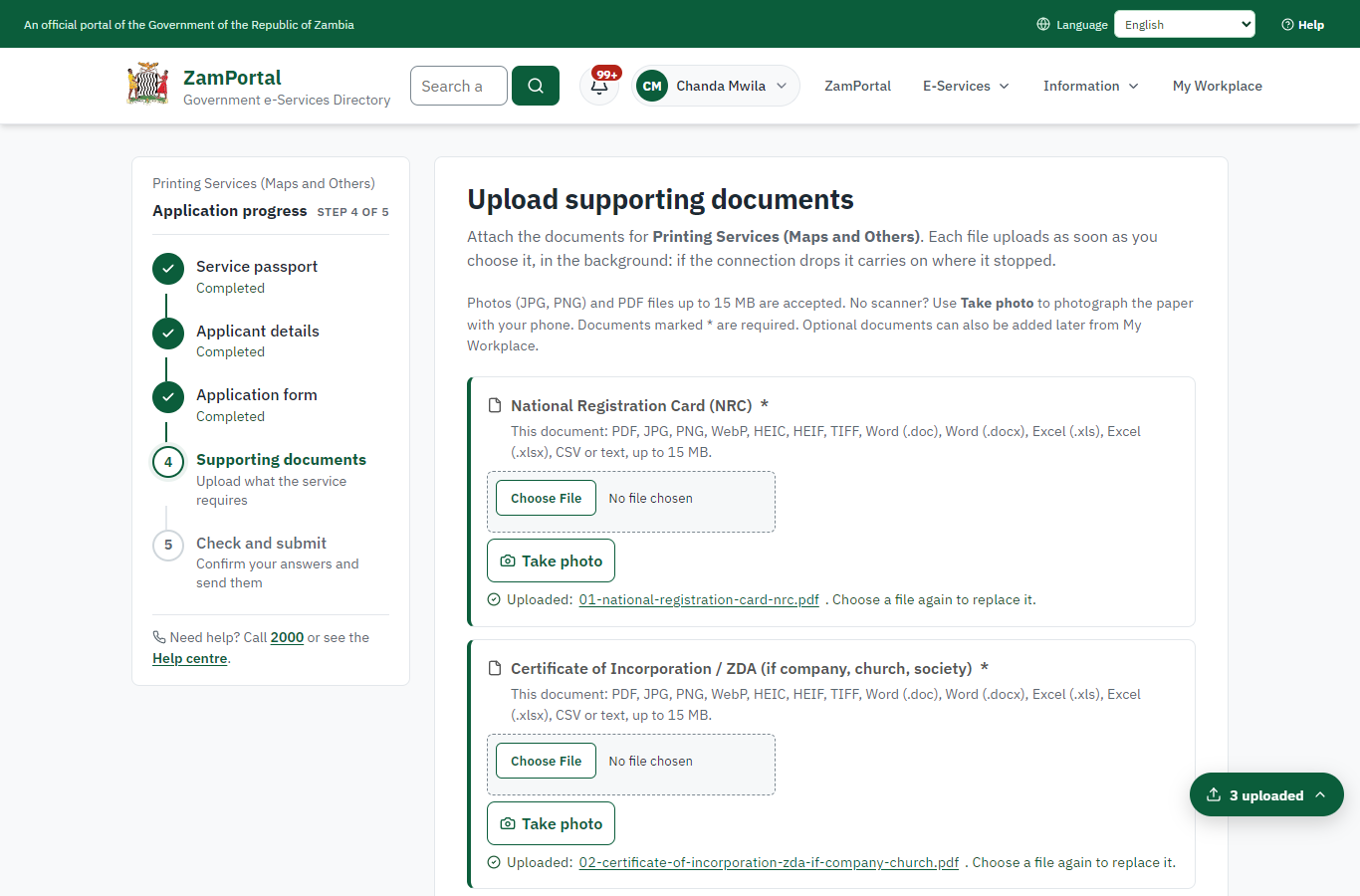
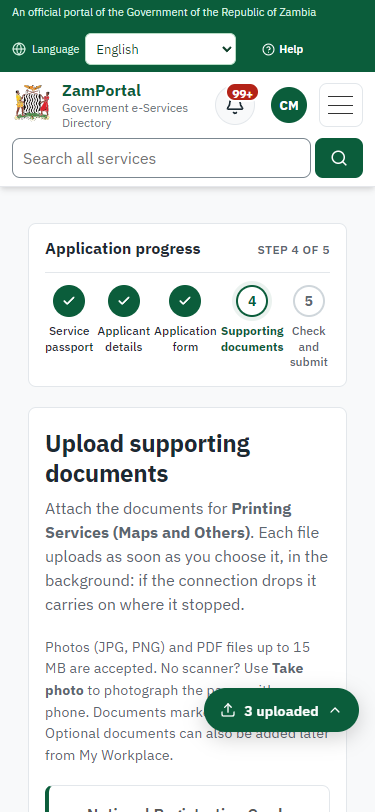
Each document the service asks for has its own upload (3 in this run: National Registration Card (NRC), Certificate of Incorporation / ZDA (if company, church, society), Copy of the product to print). The files are checked and stored with the application; the page confirms each upload.
Step 6. Check the answers and confirm the declaration
Citizen · National e-Services portal
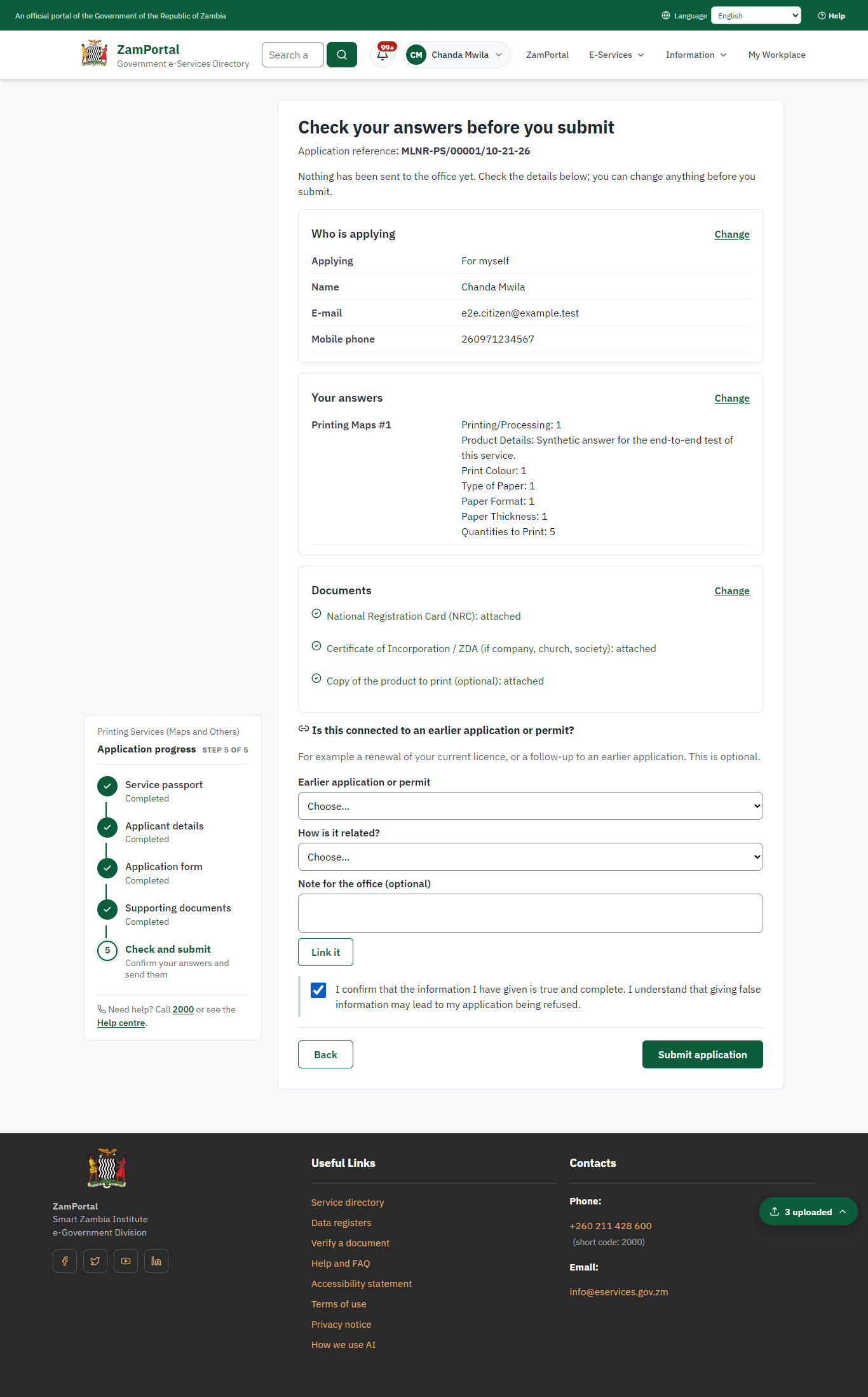
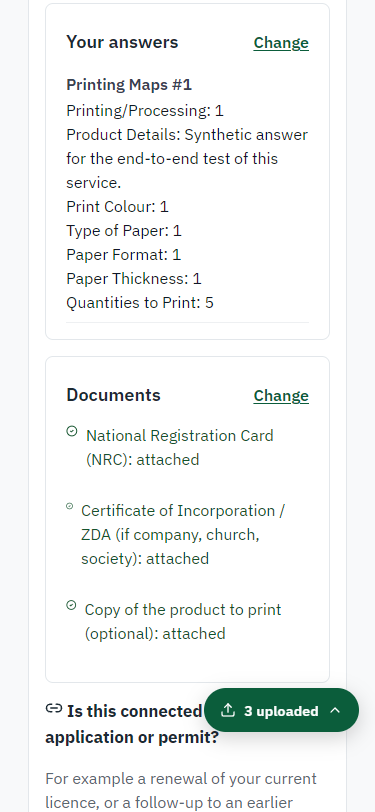
Before sending, the citizen sees every answer and document on one page and can go back to change them. The declaration that the information is true and complete must be ticked.
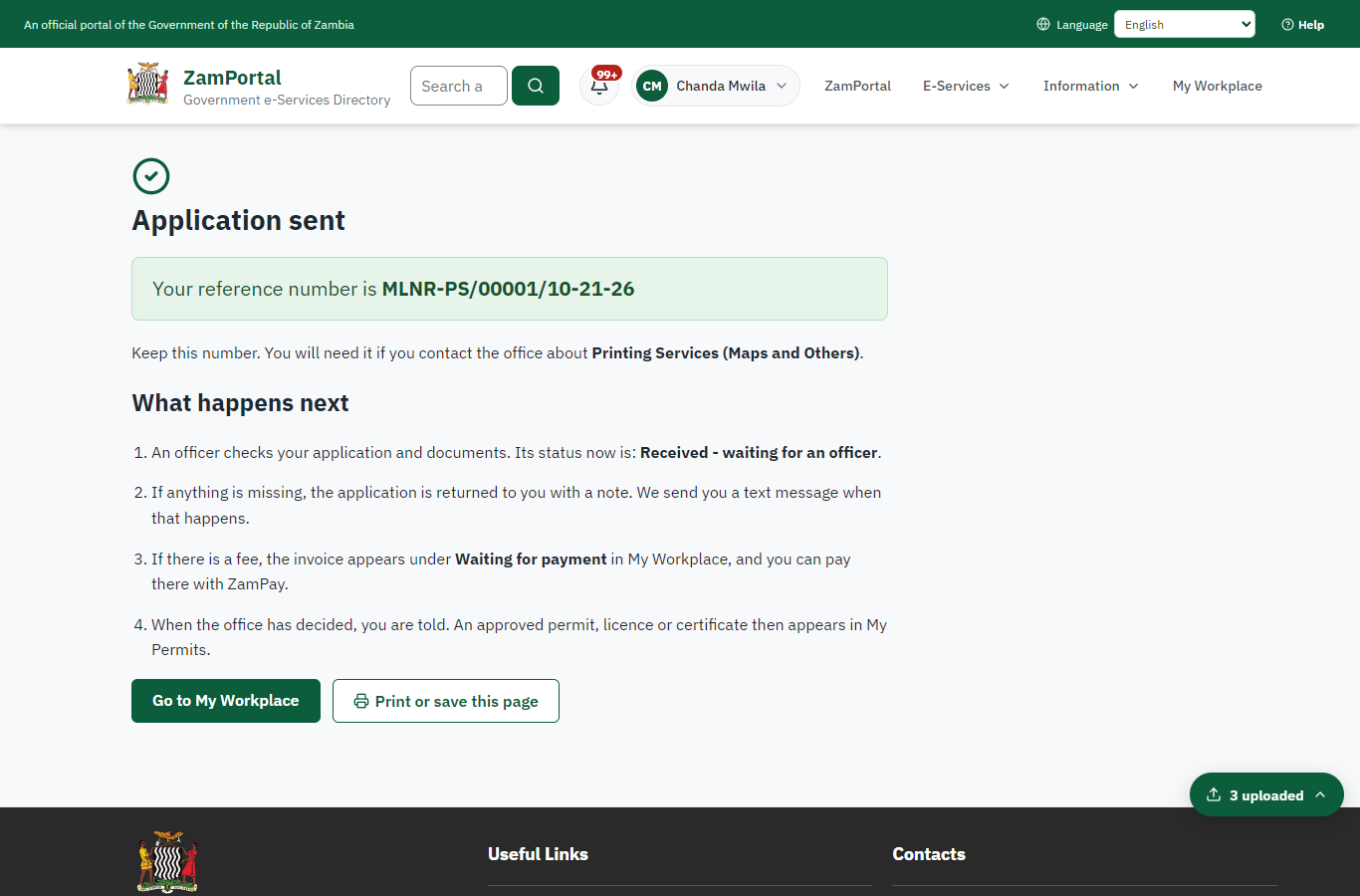
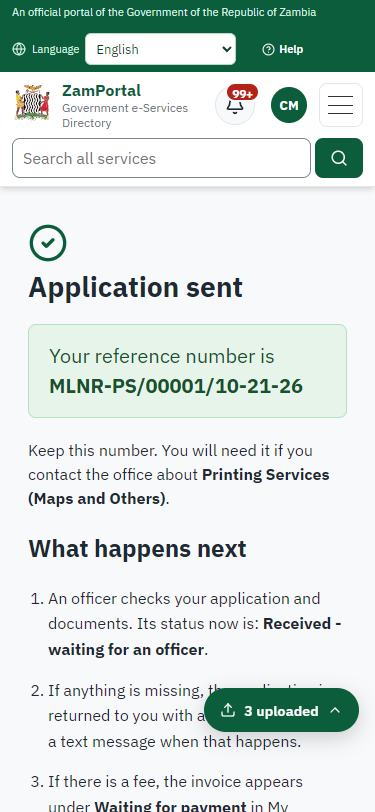
Step 7. Application sent
Citizen · National e-Services portal
The portal confirms the application with the ministry's reference number (MLNR-PS/00001/10-21-26 in this run). The application goes to the ministry's officers; the citizen follows it in My Workplace.
Step 8. Take the new application on
Case Officer · Back office
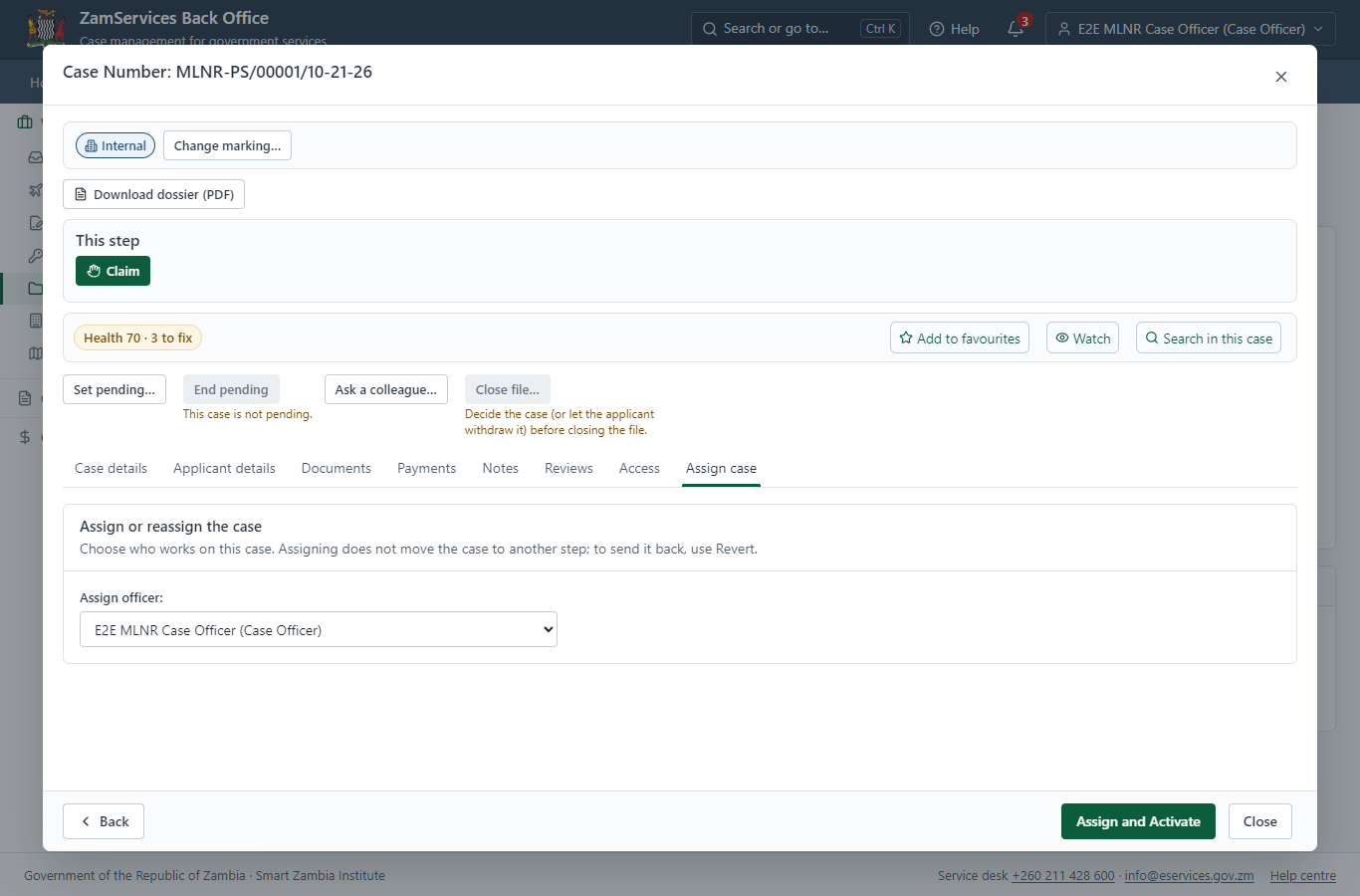
The application arrives in the case queue of the ministry that owns the service (Survey Department); only its staff see it. The officer opens it by its reference number - answers, documents and process are on the case - assigns it to themself and takes it on.
Step 9. Receive, Inspect, Generate Quotation
Case Officer · Back office
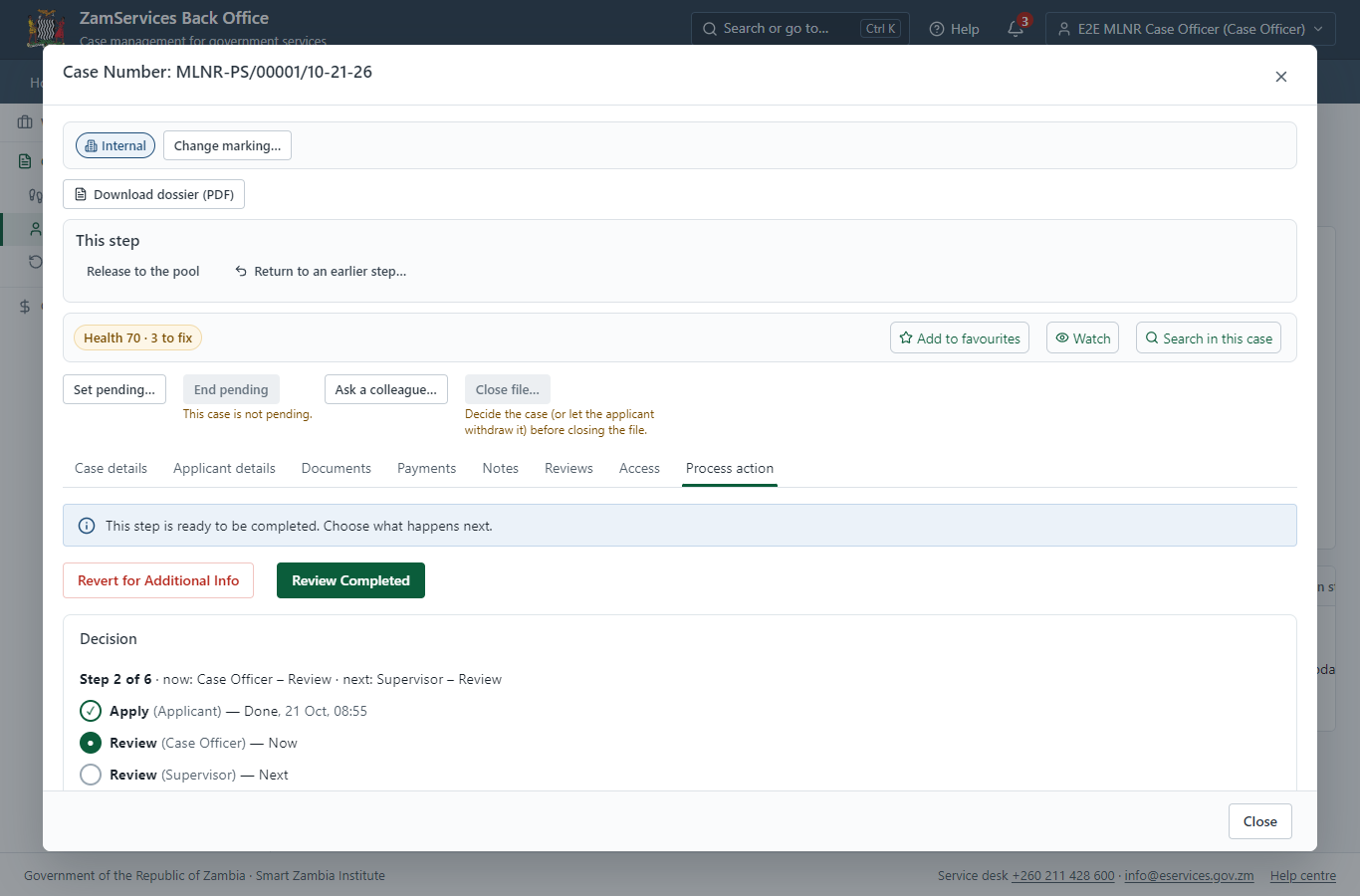
The Case Officer works on "Receive, Inspect, Generate Quotation" (review in the imported process), checks the application and its documents, and completes the step.
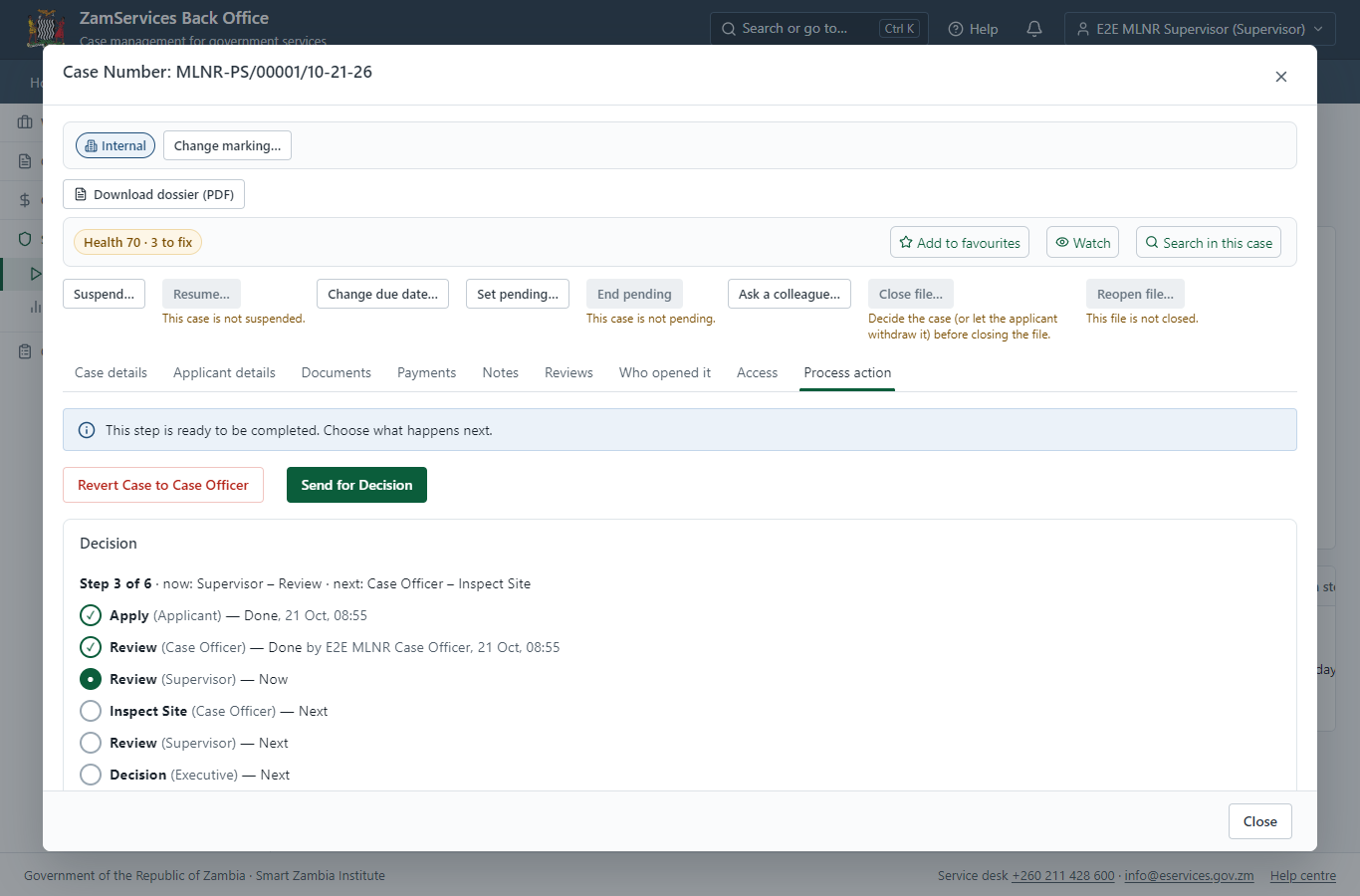
Step 10. Review Case, Send Quotation
Supervisor · Back office
The Supervisor works on "Review Case, Send Quotation" (review in the imported process), checks the application and its documents, and completes the step.
Step 11. Schedule visit / Upload Verification Report
Case Officer · Back office
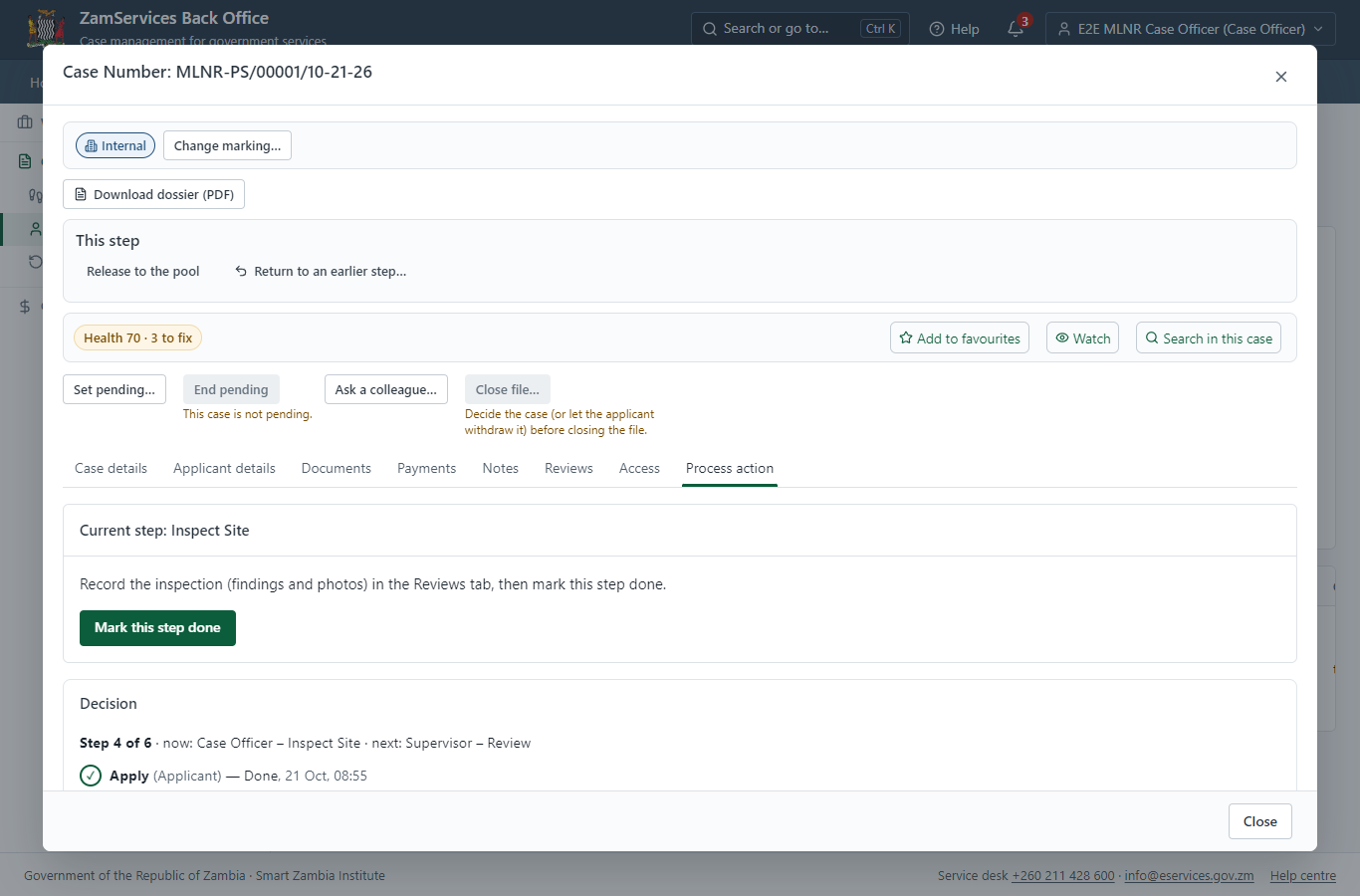
The Case Officer works on "Schedule visit / Upload Verification Report" (inspection in the imported process), checks the application and its documents, and completes the step.
Step 12. Inspection: Schedule visit / Upload Verification Report
Case Officer · Back office
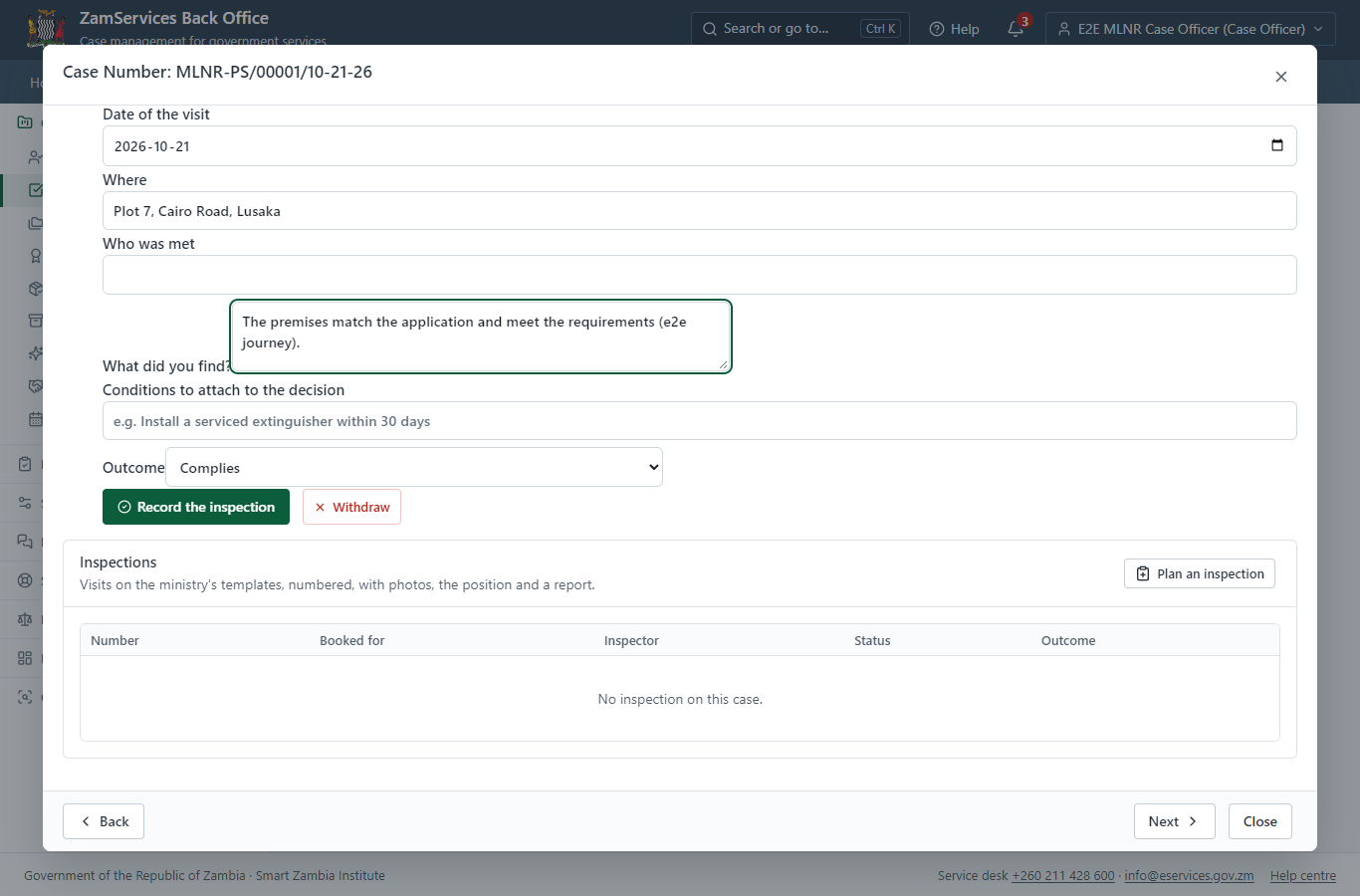
"Schedule visit / Upload Verification Report" is a site inspection: the case cannot move on until the findings are recorded. The officer assigns the inspection (to themself here) on the case's Reviews tab, visits the place and records each checklist item, the visit and the outcome ("passed" in this run); then completes the step.
Step 13. Review, Add Comments, Send for Signature
Supervisor · Back office
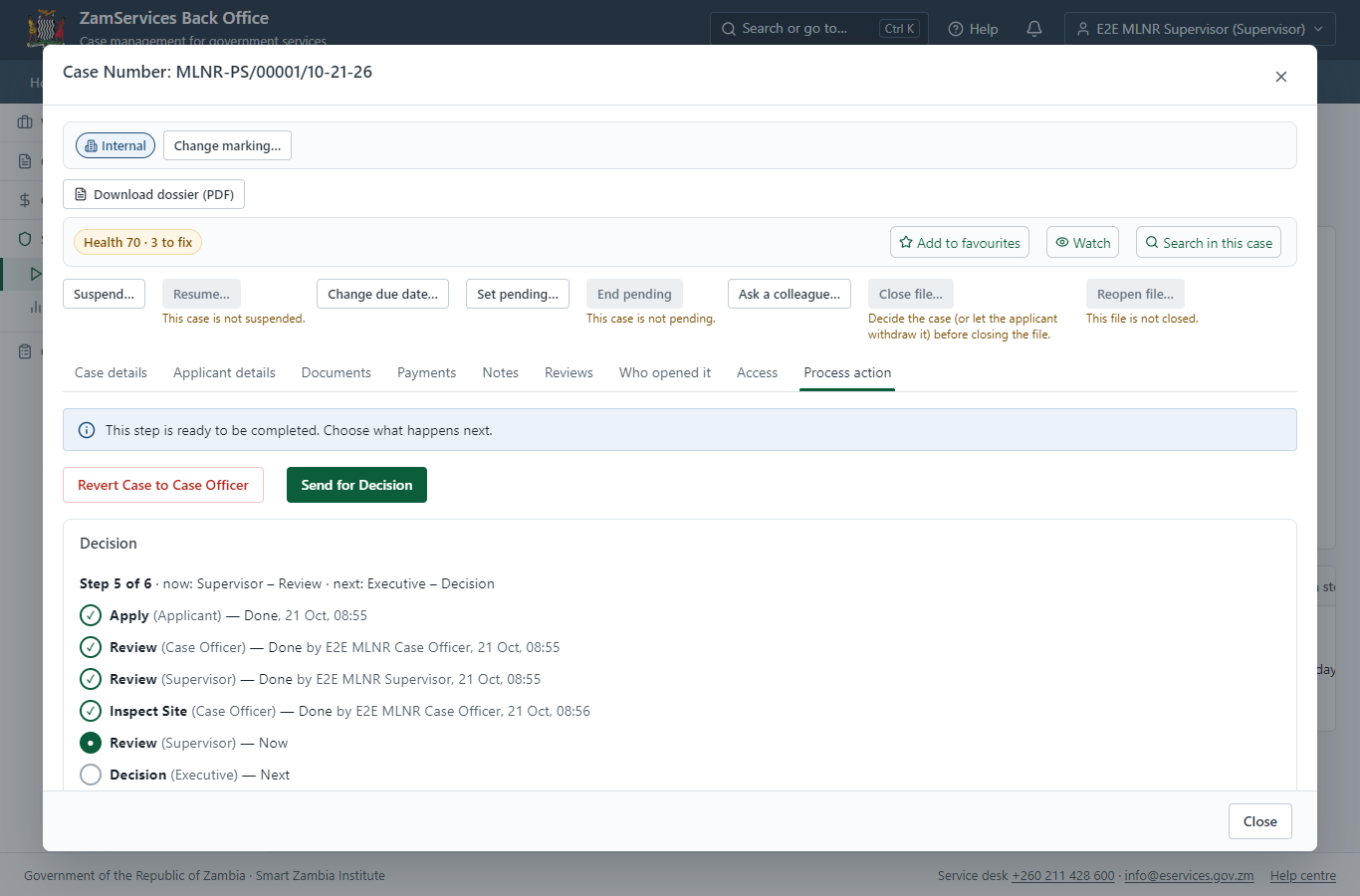
The Supervisor works on "Review, Add Comments, Send for Signature" (review in the imported process), checks the application and its documents, and completes the step.
Step 14. Decide: Review Verification Report, Upload Letter of Response
Executive · Back office
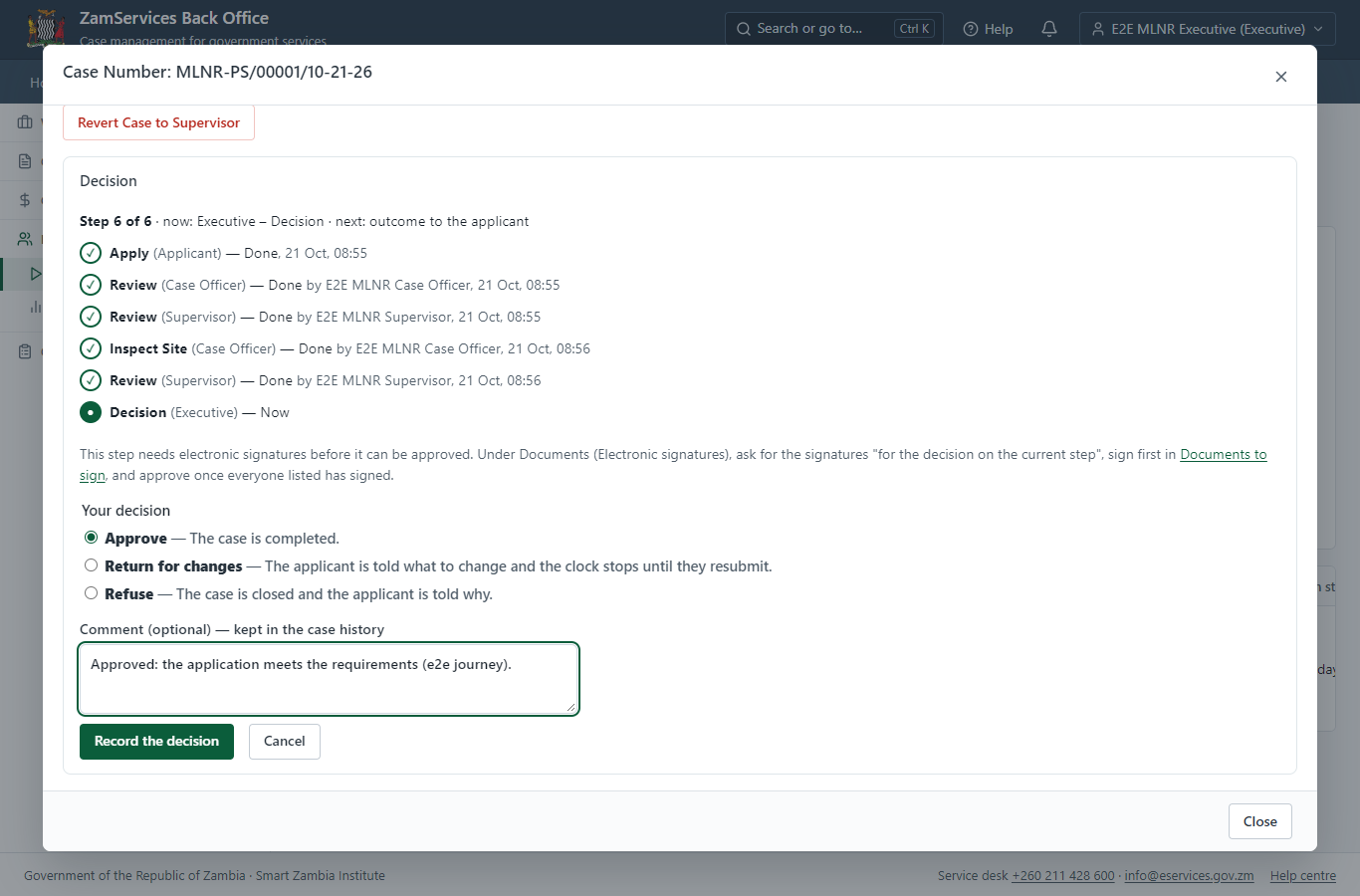
At "Review Verification Report, Upload Letter of Response" the Executive records the decision: approve, with a comment kept in the case history. Approving moves the case on; the last decision completes it and issues the document.
Step 15. Issue the document
Case Officer · Back office
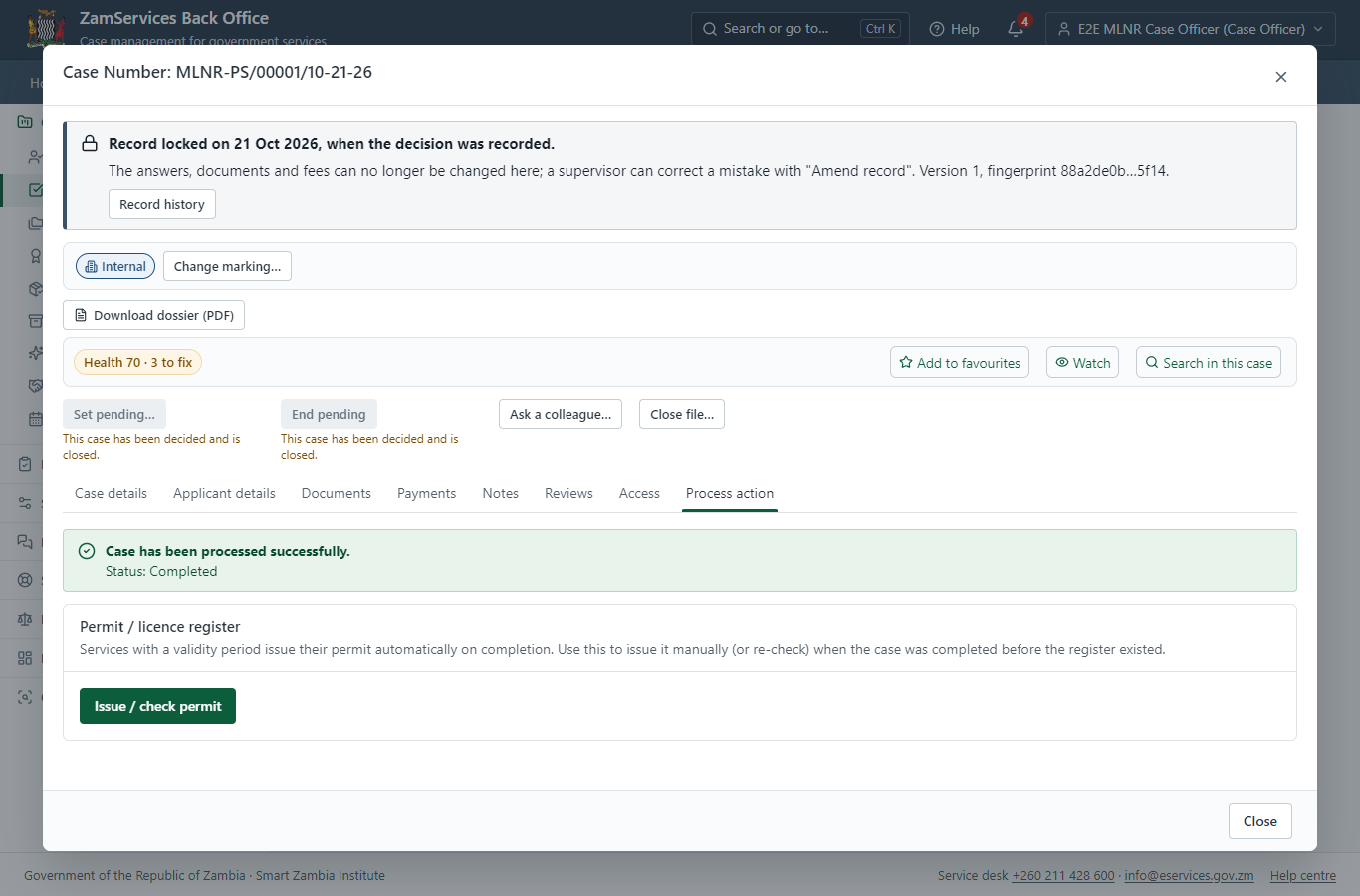
The service's validity ("N/A") is not a fixed period, so completing the case does not issue the document by itself: the officer issues it from the completed case ("Issue / check permit"). It is generated from the service's output configuration and sealed.
Step 16. The document in My permits
Citizen · National e-Services portal
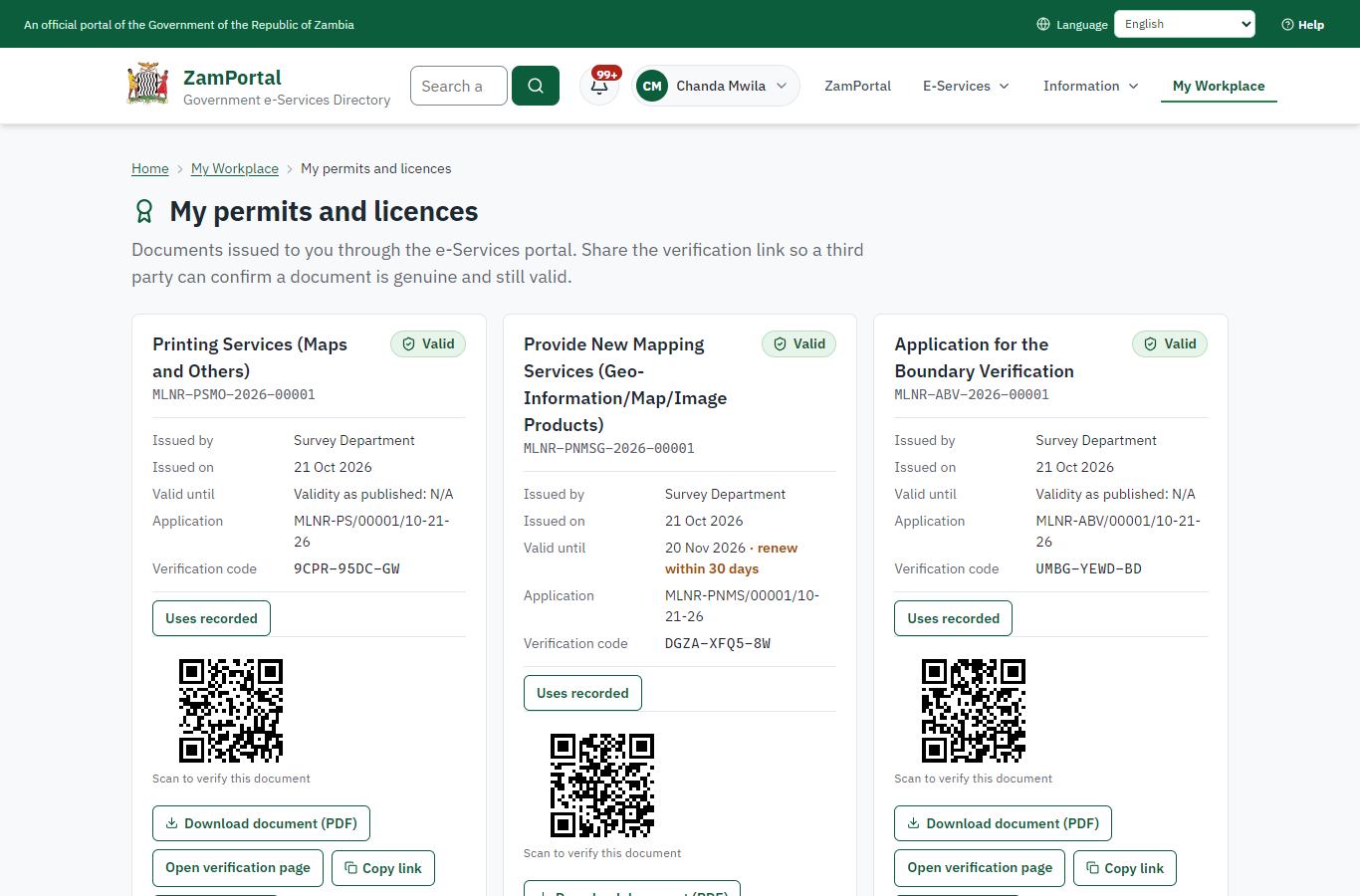
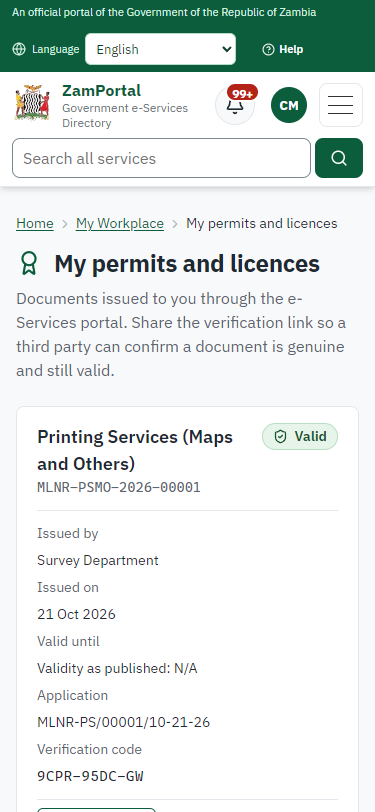
The issued document (MLNR-PSMO-2026-00001 in this run: "Printing Services (Maps and Others)") is listed in "My permits and licences" with its validity and a download of the sealed PDF.
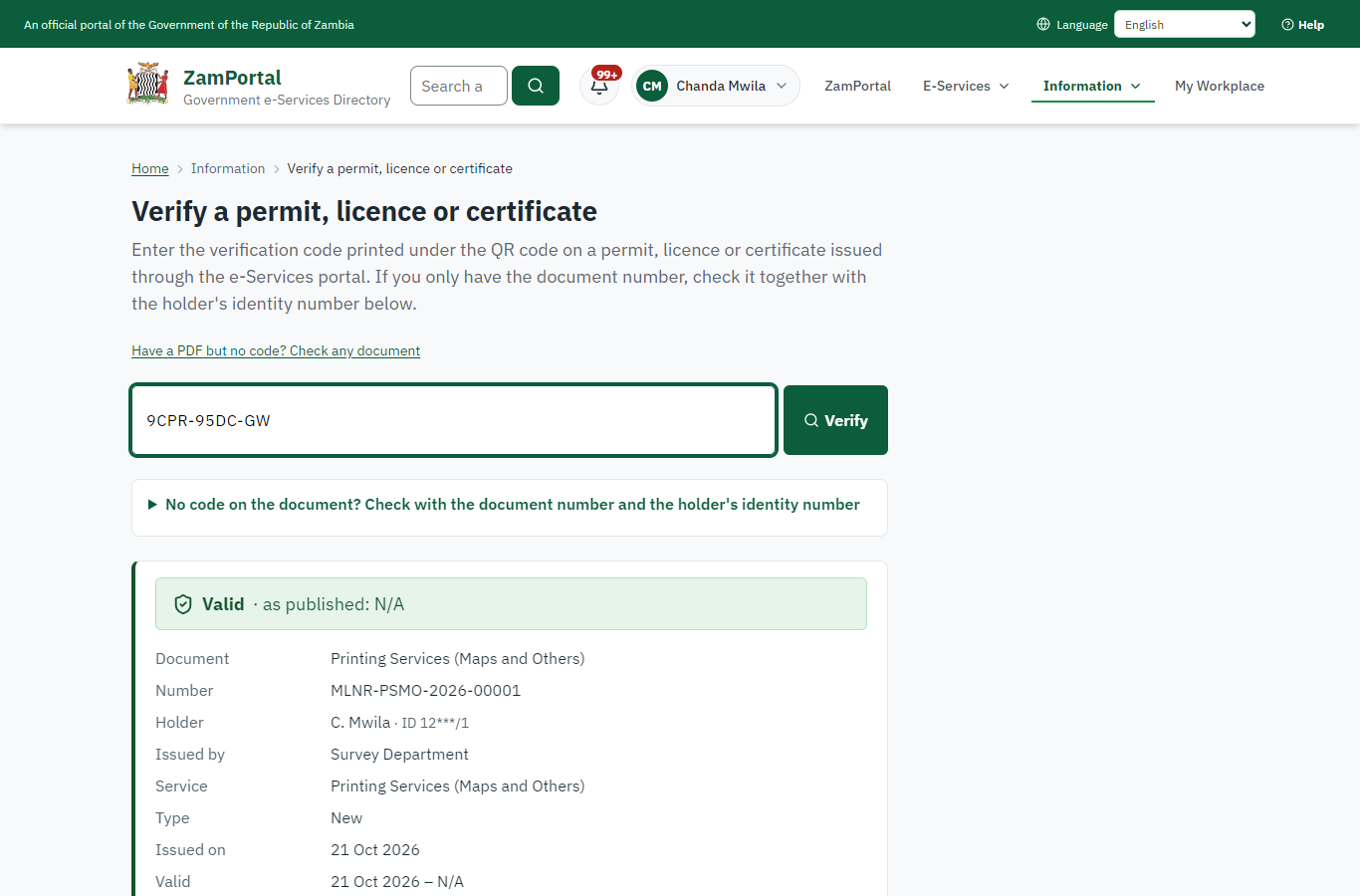
Step 17. Verify the document
Anyone (public) · Public verification page
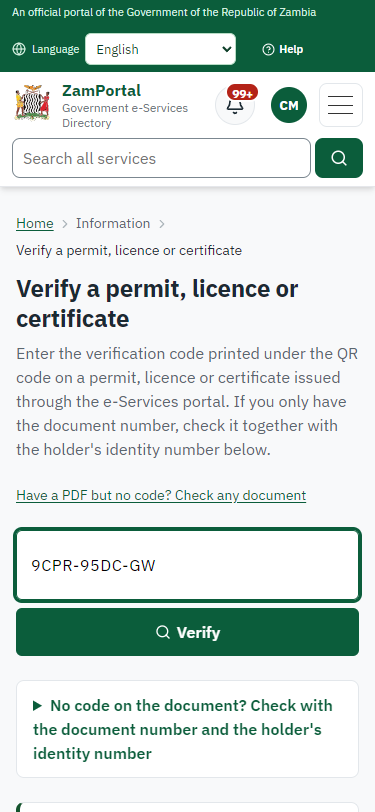
The QR code on the document opens the public verification page: genuine and current, to whom it was issued, and whether the electronic seal is valid. No sign-in is needed.
3. Payment
| Item | In the test run |
|---|---|
| Fee (as published) | Fee Schedule determined by the type of the product. To be calculated and provided by the Case Officer. |
4. Output documents
Printing Services (Maps and Others) (sealed PDF)
Issued when the case was approved, from the service's output configuration (permitDocument/issued@1), filled from the application and the decision, sealed with the platform's electronic seal and stored as the issued version. The holder downloads it from My permits; the verification page checks it.
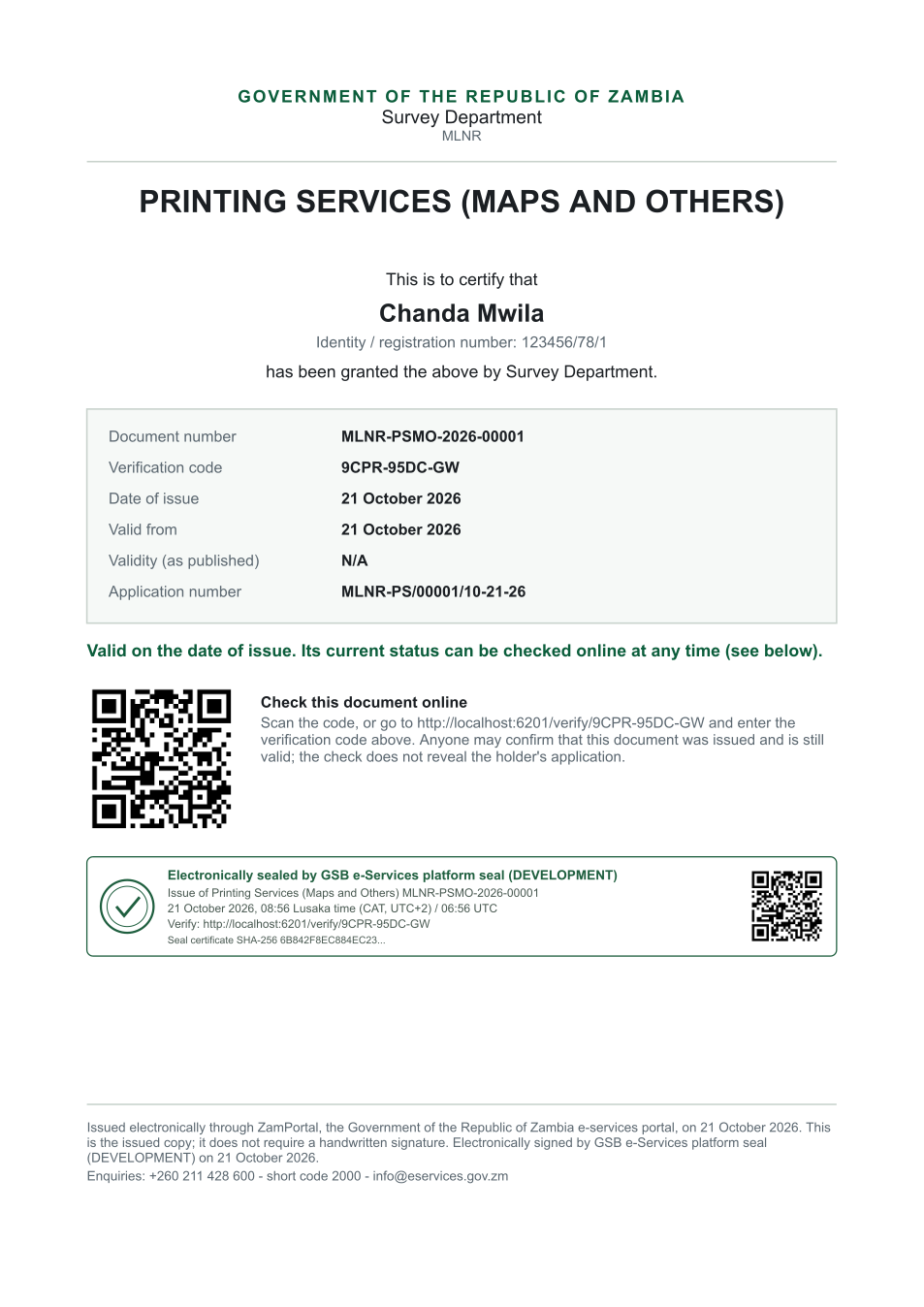
The issued PDF has 1 page; the image shows the first.
Fields
| Field | Value in the test run |
|---|---|
| Document title | Printing Services (Maps and Others) |
| Permit / licence number | MLNR-PSMO-2026-00001 |
| Holder | Chanda Mwila |
| Valid from | 2026-10-21 |
| Valid until | |
| Status | active |
| Verification code (printed with a QR code) | 9CPR-95DC-GW |
Seal
| Item | Detail |
|---|---|
| Seal status | sealed |
| Signature level | PAdES-B-T |
| Sealed by | the platform seal (development key in the test run) |
| Signed at | 2026-10-21T06:56:19.566Z |
| Trusted time-stamp | 2026-10-21T06:56:20.288Z (time-stamping authority) |
| Document fingerprint (SHA-256) | 6eb71de115f77eb7... |
Verification
| Item | Detail |
|---|---|
| Where | The public verification page of the national portal, <portal>/verify/<verification code>, opened by scanning the QR code on the document. |
| What it shows | Whether the document is genuine and current, its holder and validity, and whether the electronic seal is valid and who sealed it. |
| Checking a copy | Anyone can upload a PDF they were given; the page says whether it is exactly the document that was issued. A changed copy is reported as not matching. |
On screen: step 15 (Issue the document), step 16 (The document in My permits), step 17 (Verify the document) in section 2.
5. Notifications
| When | Channel | To | Message | Delivery |
|---|---|---|---|---|
| Application received | in-app (portal bell) | the applicant | Application MLNR-PS/00001/10-21-26 received - Your application MLNR-PS/00001/10-21-26 for Printing Services (Maps and Others) has been received by Survey Department. | shown |
| Status changed | in-app (portal bell) | the applicant | Update on application MLNR-PS/00001/10-21-26 - MLNR-PS/00001/10-21-26 (Printing Services (Maps and Others)) is now: With the office - being reviewed. | shown |
| case.inspection_scheduled | in-app (portal bell) | the applicant | Inspection for application MLNR-PS/00001/10-21-26 on Wednesday 21 October 2026 - Inspection for MLNR-PS/00001/10-21-26 (Printing Services (Maps and Others)) on Wednesday 21 October 2026. | shown |
| review.submitted | in-app (portal bell) | the applicant | Opinion received on case MLNR-PS/00001/10-21-26 - E2E MLNR Case Officer recorded an opinion on case MLNR-PS/00001/10-21-26: passed. | shown |
| Invitation to rate the service | in-app (portal bell) | the applicant | How was Printing Services (Maps and Others)? - How was Printing Services (Maps and Others)? Tell us in about a minute. | shown |
| Decision: approved | in-app (portal bell) | the applicant | Application MLNR-PS/00001/10-21-26 completed - MLNR-PS/00001/10-21-26 (Printing Services (Maps and Others)) is complete. Your documents are ready. | shown |
| Licence / permit issued | in-app (portal bell) | the applicant | Your Printing Services (Maps and Others) document has been issued - MLNR-PSMO-2026-00001 has been issued for Printing Services (Maps and Others). | shown |
| Application received | sms | +260 97* *** 567 | Application MLNR-PS/00001/10-21-26 for Printing Services (Maps and Others) has been received. Track it: <portal>/my-workplace | delivered |
| Application received | e2e.c***@example.test | Application MLNR-PS/00001/10-21-26 received | skipped | |
| Status changed | sms | +260 97* *** 567 | delivered | |
| review.requested | e2e.c***@example.test | Your opinion is requested on application MLNR-PS/00001/10-21-26 | skipped | |
| case.inspection_scheduled | e2e.c***@example.test | Inspection for application MLNR-PS/00001/10-21-26 on Wednesday 21 October 2026 | skipped | |
| case.inspection_scheduled | sms | +260 97* *** 567 | delivered | |
| review.submitted | e2e.c***@example.test | Opinion received on case MLNR-PS/00001/10-21-26 | skipped | |
| Invitation to rate the service | sms | +260 97* *** 567 | skipped | |
| Invitation to rate the service | e2e.c***@example.test | How was Printing Services (Maps and Others)? | skipped | |
| Decision: approved | e2e.c***@example.test | Application MLNR-PS/00001/10-21-26 completed | skipped | |
| Decision: approved | sms | +260 97* *** 567 | delivered | |
| Licence / permit issued | e2e.c***@example.test | Your Printing Services (Maps and Others) document has been issued | skipped | |
| Licence / permit issued | sms | +260 97* *** 567 | delivered |
Delivery: shown = in the portal's notification bell; delivered = the SMS gateway (a test double in this run) reported the text delivered; skipped = not sent on that channel (e-mail is not configured on the test installation, and some notices go out on one channel only); sent by the national portal = a ministry node handed the notice to the national portal, which texts and e-mails the citizen under its own name and the citizen's preferences. Addresses written <portal>, <ZamPay> stand for the national portal and ZamPay.
6. Legacy mapping
| Item | Detail |
|---|---|
| Replaces | Printing Services (Maps and Others) in the legacy ZIGS e-Services directory (ZIGS_Services) |
| Legacy service id | 399 |
| Legacy provider | Survey Department (MLNR) under Ministry of Lands and Natural Resources |
| Legacy process | Standard.Review_3Step (process 103) |
| Fee in the legacy system | none |
| Fee taken before submission | yes (as in ZIGS) |
| Time to issue (legacy) | New: 5 working days |
| Legacy output templates | Notice of Action: ZIGS_Forms_Notices / GS-2.NoticeOfAction Application form: ZIGS_Forms_MLNR / MLNR_PrintingService.Application |
| Legacy address | none recorded |
| How it was brought over | Imported by the platform's legacy catalogue importer (zcm-backend scripts/zigs/importLegacy.js) from the ZIGS snapshot: form, case types, fees, documents, process and output templates, then served by the new platform. |
7. Version and date
| Item | Detail |
|---|---|
| Document version | service v1, platform a0a302b8 |
| Generated | 2026-10-21T06:56:28Z (by the end-to-end run, not edited by hand) |
| Service version | not versioned (configured directly) |
| Platform snapshot | backend a0a302b8 portal 72805f0 back office 58e5946 |
| Test suite | e2e 5999d9b; one installation (combined); seed profile mihud |
| Journeys | 30-catalogue-service.spec.js: citizen finds the service, answers its form, uploads its documents and sends the application - passed 30-catalogue-service.spec.js: the case goes through every step of its process: payments by the citizen, each officer step by its role - passed 30-catalogue-service.spec.js: the grant document is issued, sealed, filled in and verifiable; the citizen has it in My permits - passed |
| Result | 3 of 3 journey tests passed |
| Data | Synthetic test data on a local test installation; provider test doubles for ZamPass, ZamPay, SMS and signing. |