
Site Rent
| Form | Workflow | Outputs | E2E test | Docs |
|---|---|---|---|---|
| Passed | Passed | Passed | Passed | Passed |
- End-to-end test
- 3/3 passed 2026-10-21 (mihud, combined)
- Documentation
- 10 steps, 18 images · Download the DOCX
- Catalogue ID
- 662
Output documents
- GS-1 Application for a Government Service (application)
- GS-2 Notice of Government Action (notice-of-action)
Test evidence
Site Rent
Service documentation · Republic of Zambia · GSB e-Services
| Owner | Department of Local Government |
| Service key | LGD/site-rent |
| Version | service v1, platform 39fb88e4 |
| Date | 2026-10-21 |
Generated automatically by the service's end-to-end test run. Every screenshot shows synthetic test data on a local test installation, never real personal data.
This document describes the Site Rent service of Department of Local Government as the platform runs it today. It is generated by the service's end-to-end test: every step below was performed by the test, and every screenshot was taken during that run with synthetic data. Regenerate it with npm run docs:services in the e2e suite; do not edit it by hand.
1. Service summary
| Item | Detail |
|---|---|
| Service | Site Rent |
| Owner (MDA) | Department of Local Government (LGD) |
| Purpose | A quarterly amount payable by a property owner (houses, shops) in each unplanned settlement area within a local authority |
| Who can apply | Not set in the service configuration. |
| How to apply | Online on the national e-Services portal, signed in with ZamPass; pay with ZamPay. |
| Fees | Not set in the service configuration. |
| Turnaround | Not set in the service configuration. |
| Validity of the output | Not applicable |
| Required documents | None |
| Output documents | GS-1 Application for a Government Service GS-2 Notice of Government Action |
2. Application process, step by step
The process as configured in the back office:
| Step | Role | Task | Type |
|---|---|---|---|
| 1 | Applicant | Apply | form |
| 2 | Applicant | Payment | payment |
| 3 | System | Generate Document | generate-document |
| 4 | System | Notify Client | notify |
Who takes part in this journey: Finance officer, Citizen, Anyone (public), Case Officer.
Step 1. Preview the billing run
Finance officer · Back office
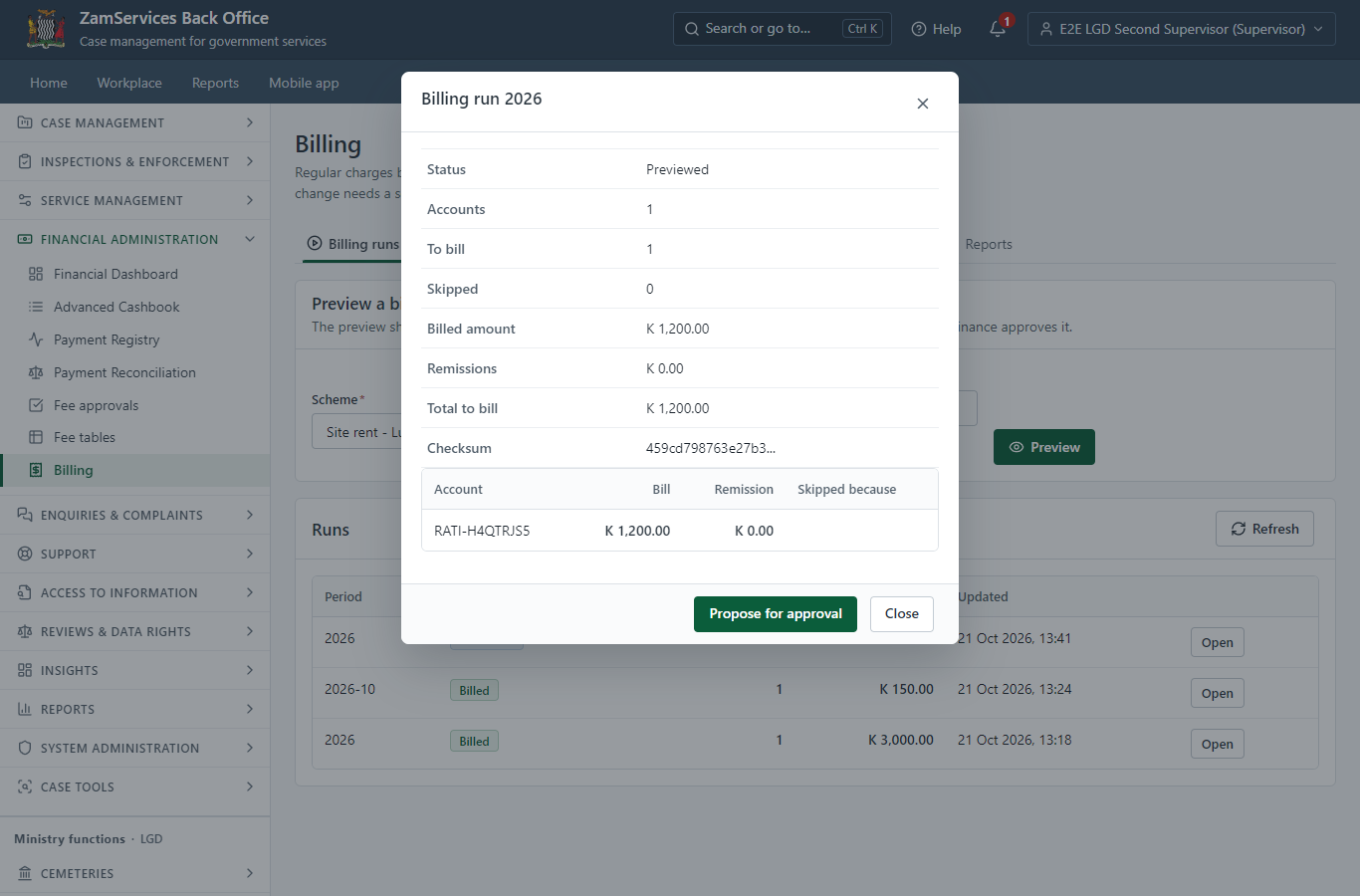
In Finance -> Billing a finance officer (the Accountant role) chooses the scheme ("Site rent - Lusaka City Council") and the period (2026) and previews the run: every account, what it would be billed (worked out on the server from the council's approved tariffs and records) and why any is skipped. Nothing is billed yet.
Step 2. Approve the billing run
Finance officer · Back office
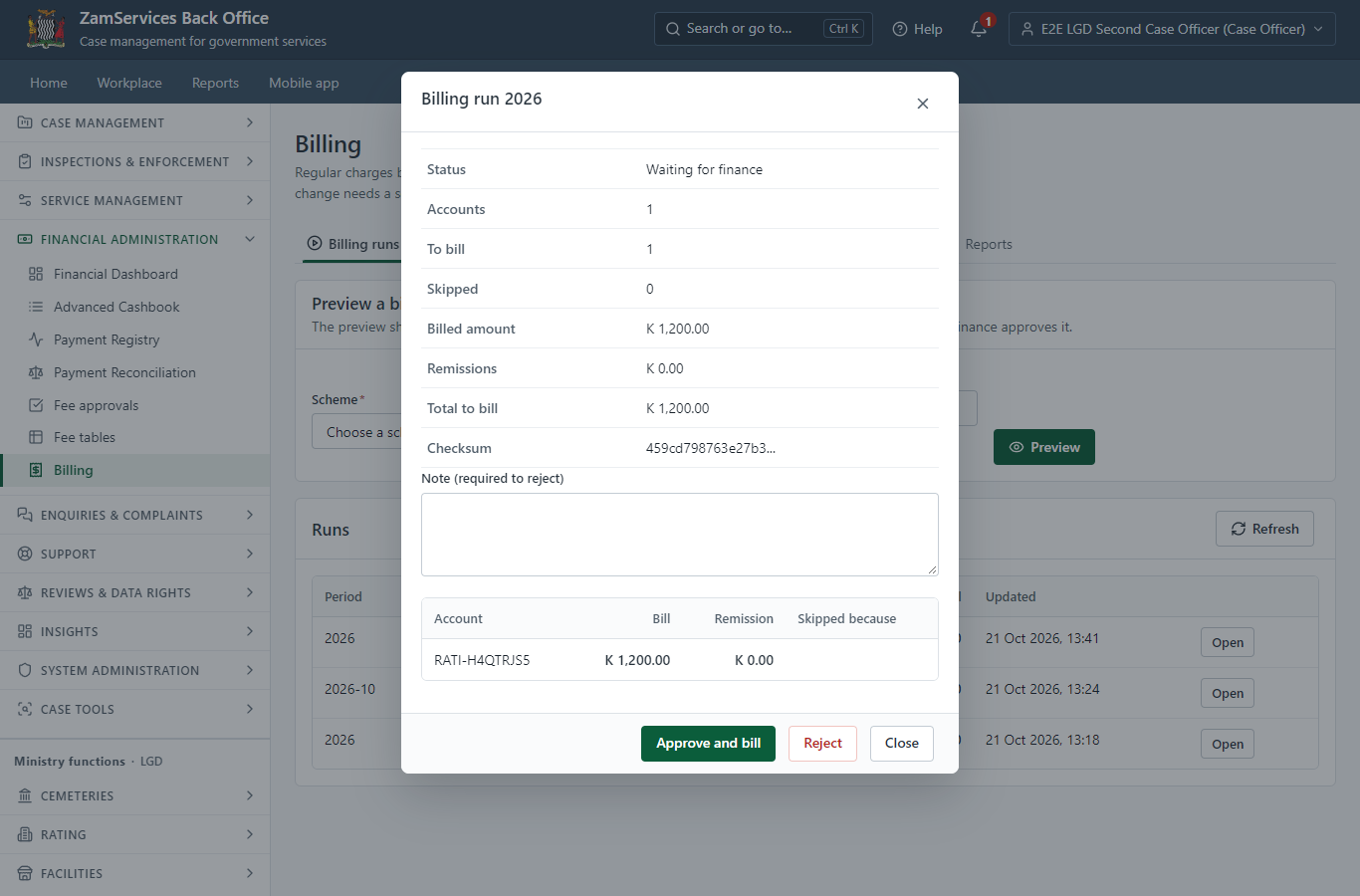
A second finance officer opens the proposed run and approves it ("Approve and bill"); the officer who proposed it cannot. The approval posts one bill per account for the period - posting again never bills twice - and the bills appear on the holders' accounts.
Step 3. Find the service at the council
Citizen · National e-Services portal
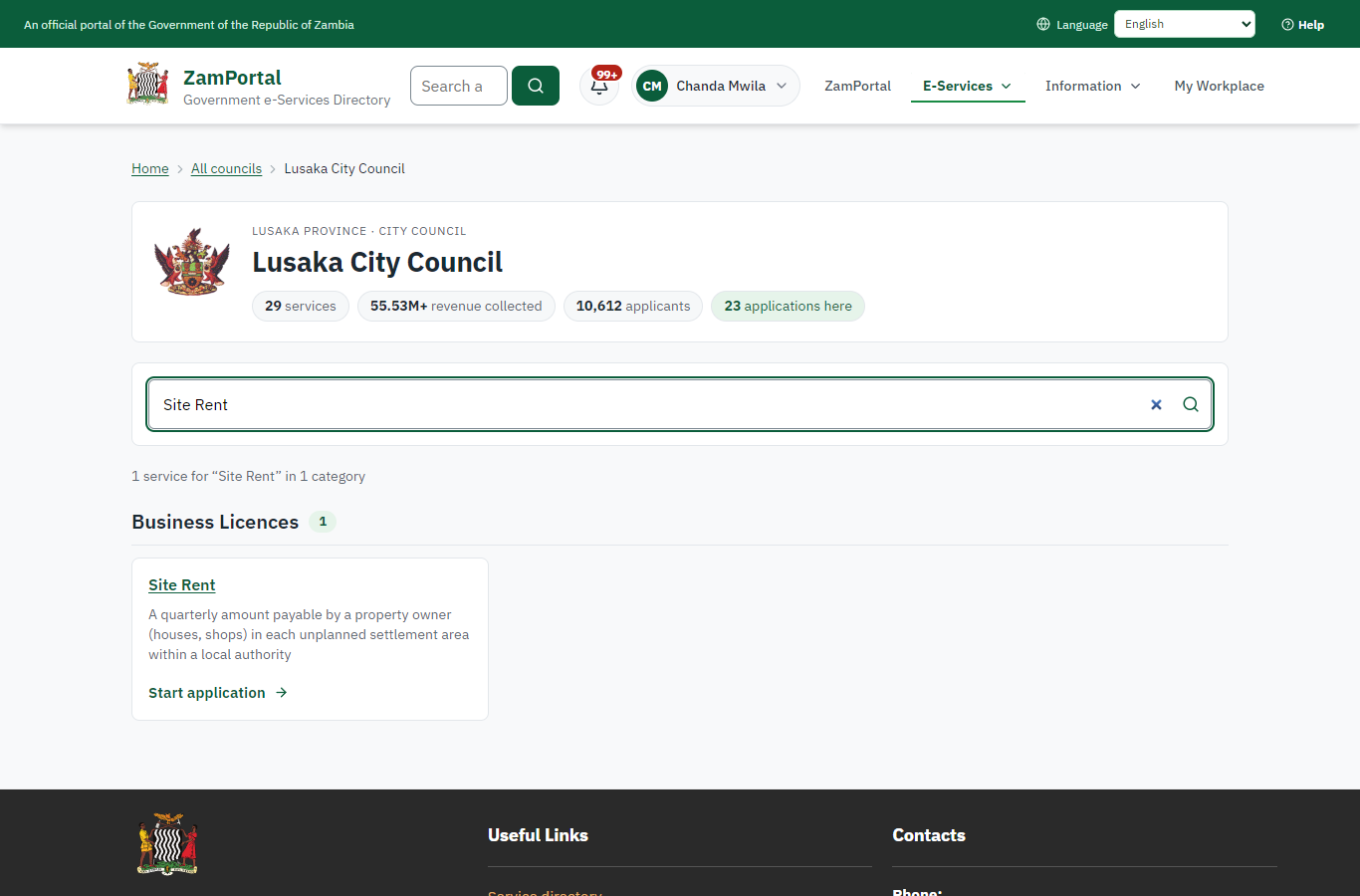
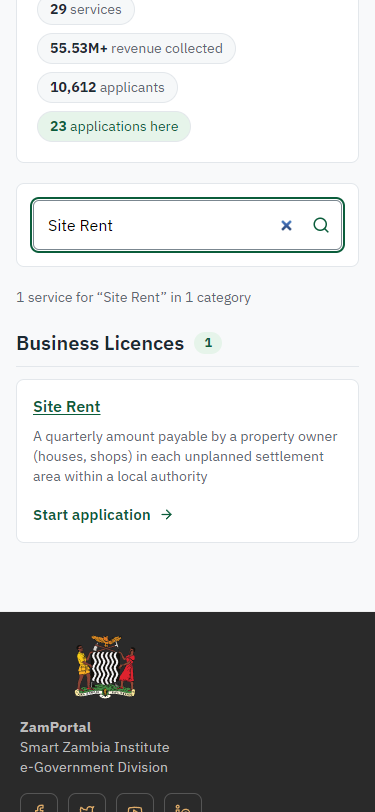
The service is delivered by the local authorities: on the national e-Services portal the citizen opens Councils, chooses their council (Lusaka City Council in this run) and searches its services ("Site Rent"). The application is then registered with that council and priced with its own fees.
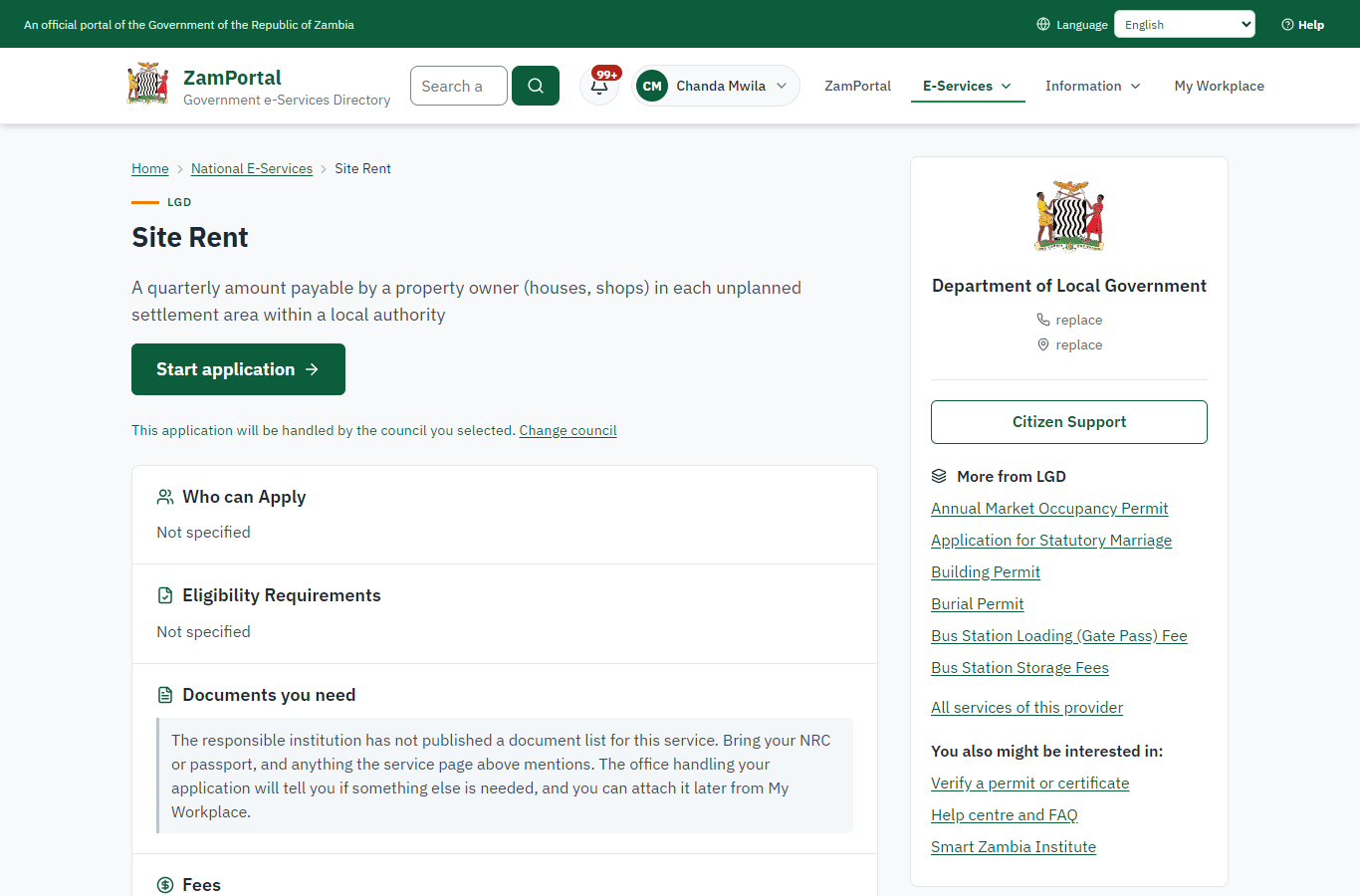
Step 4. Read the service page
Citizen · National e-Services portal
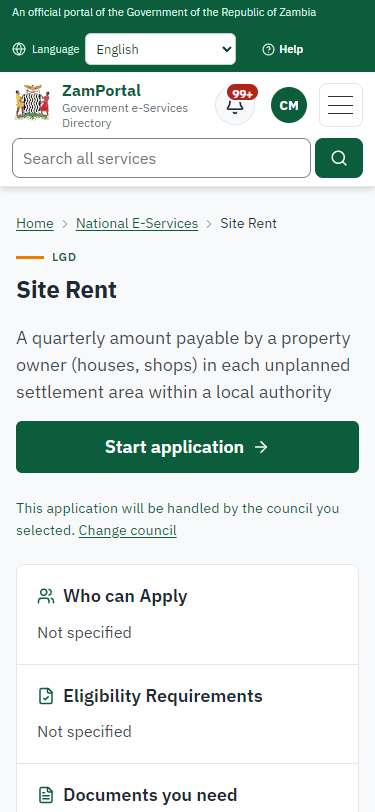
The service page sets out what the service is for, the fee, how long it takes and the documents to have ready, and names the council the application goes to. "Start application" begins an application at Lusaka City Council (the citizen is signed in with ZamPass).
Step 5. See the account and what is owed
Citizen · National e-Services portal
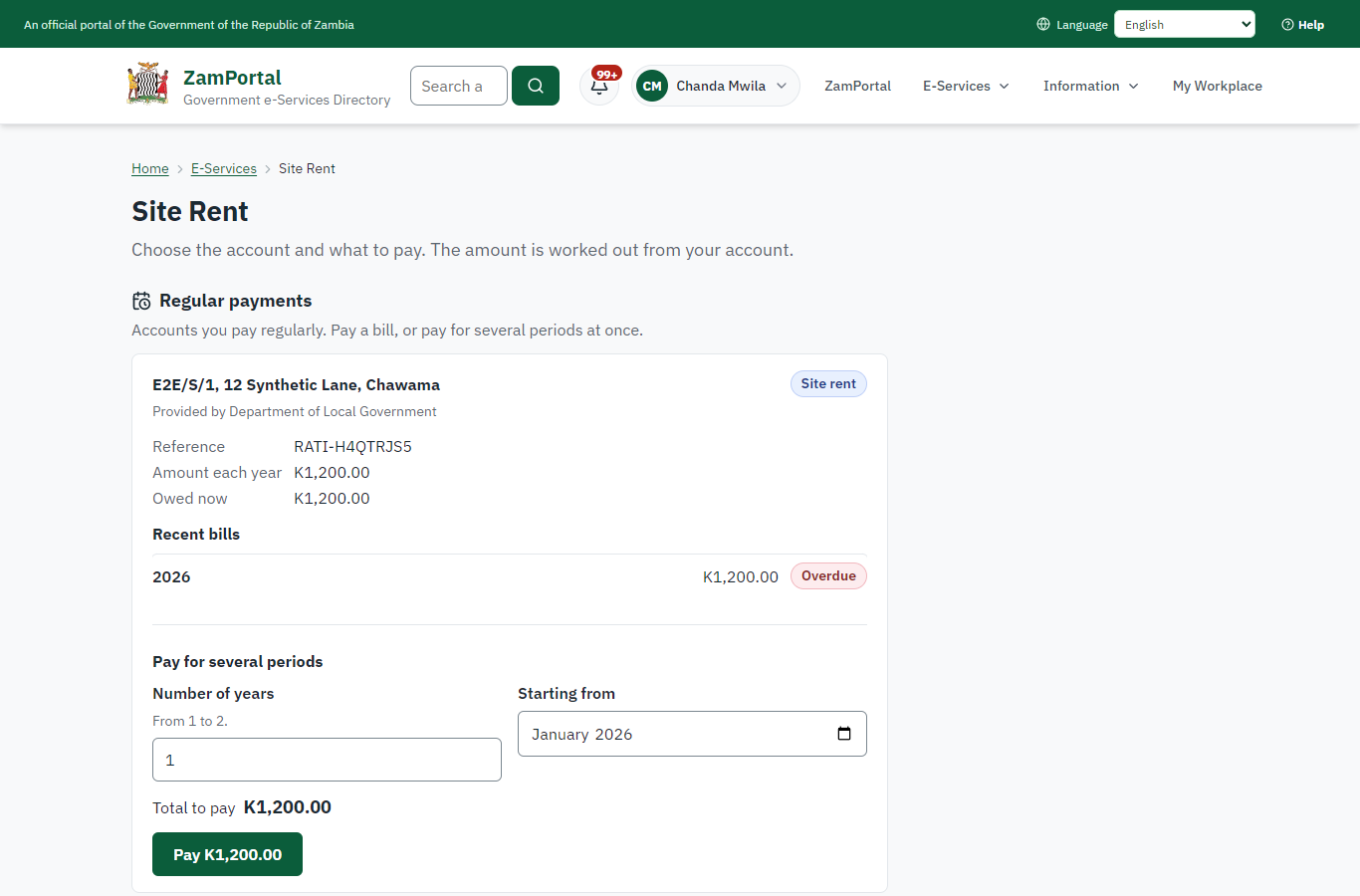
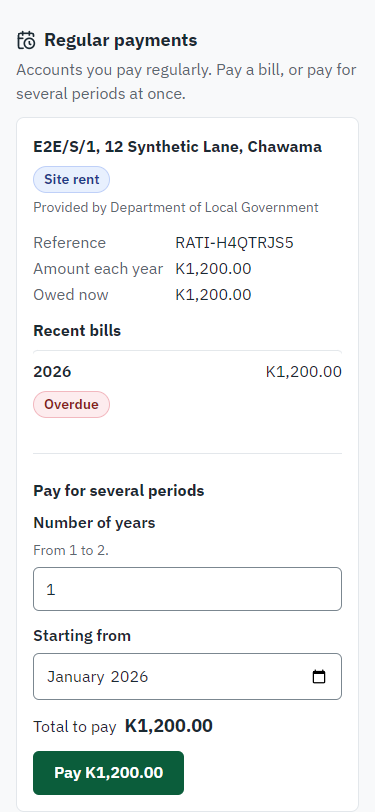
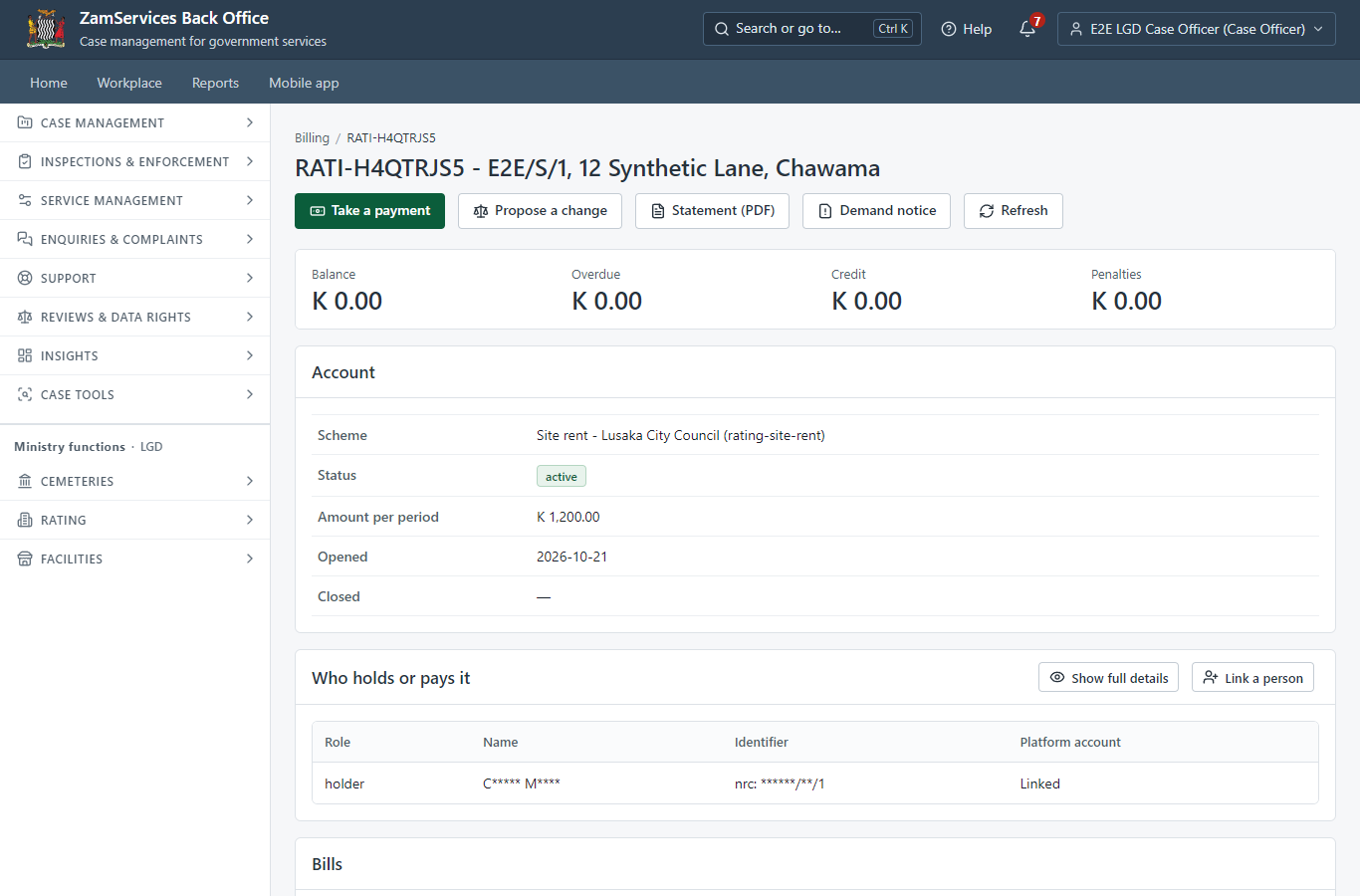
"Start application" opens the service's account page instead of a form: the citizen's Site rent (E2E/S/1, 12 Synthetic Lane, Chawama, reference RATI-H4QTRJS5) with what is owed now and the recent bills (K1,200.00 for 2026). The account is the citizen's because the office linked them to it; nothing is typed.
Step 6. Pay with ZamPay
Citizen · National e-Services portal
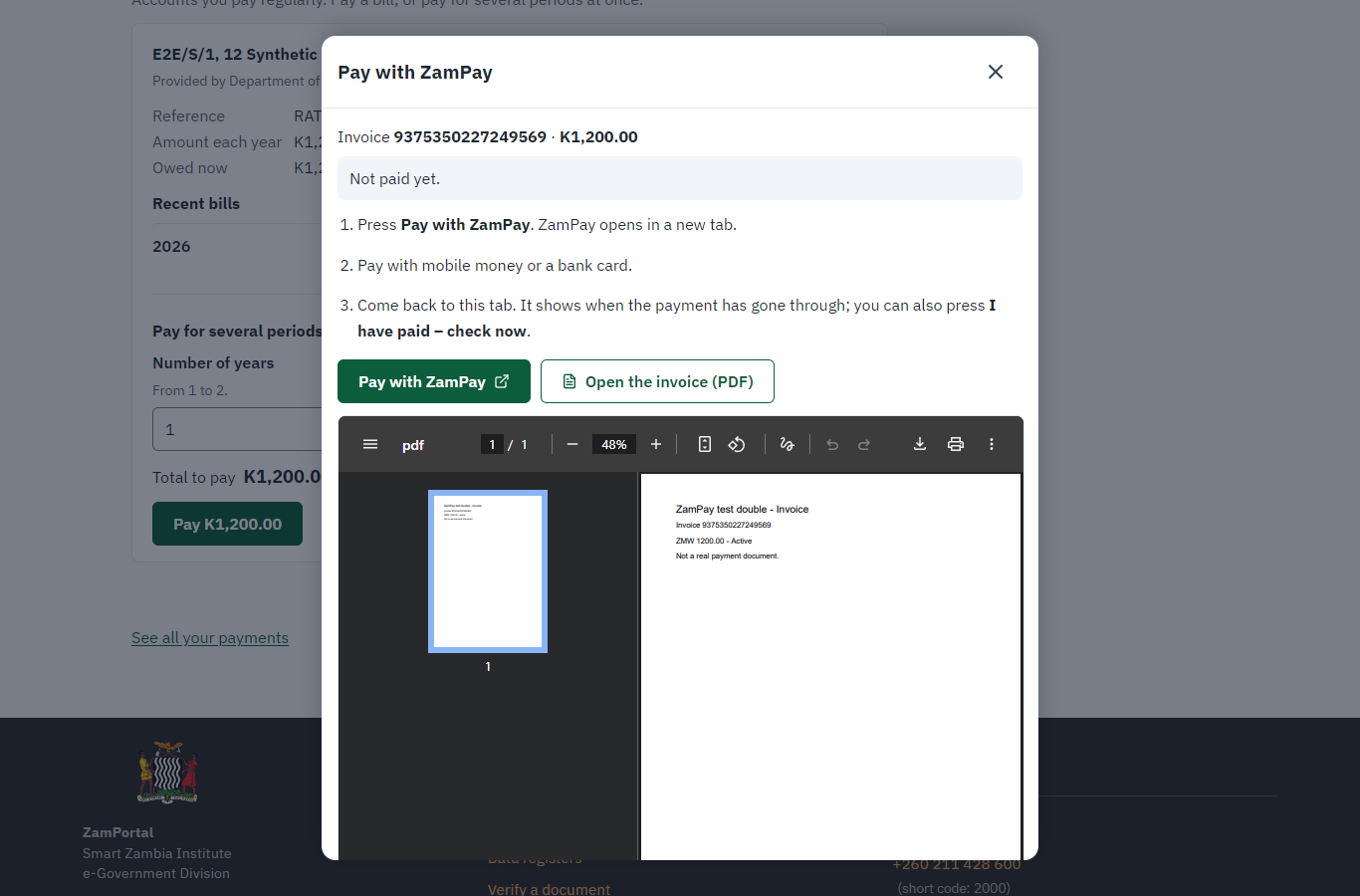
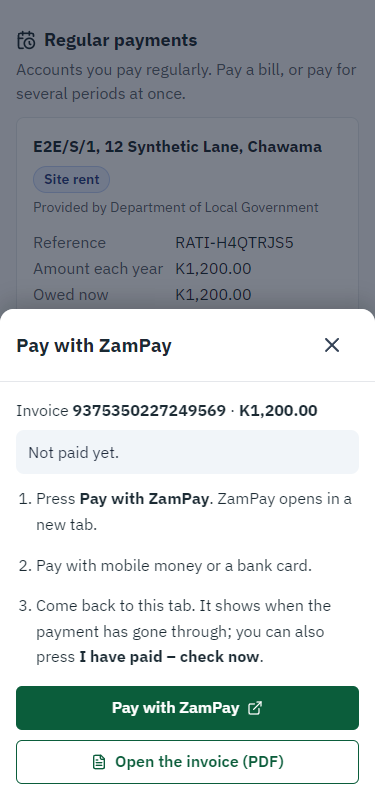
Pay raises a ZamPay invoice for the amount the server works out from the account (K1,200.00; a total the page shows that differs is refused and the server's is shown). The citizen pays at ZamPay by mobile money or bank card.
Step 7. Payment received
Citizen · National e-Services portal
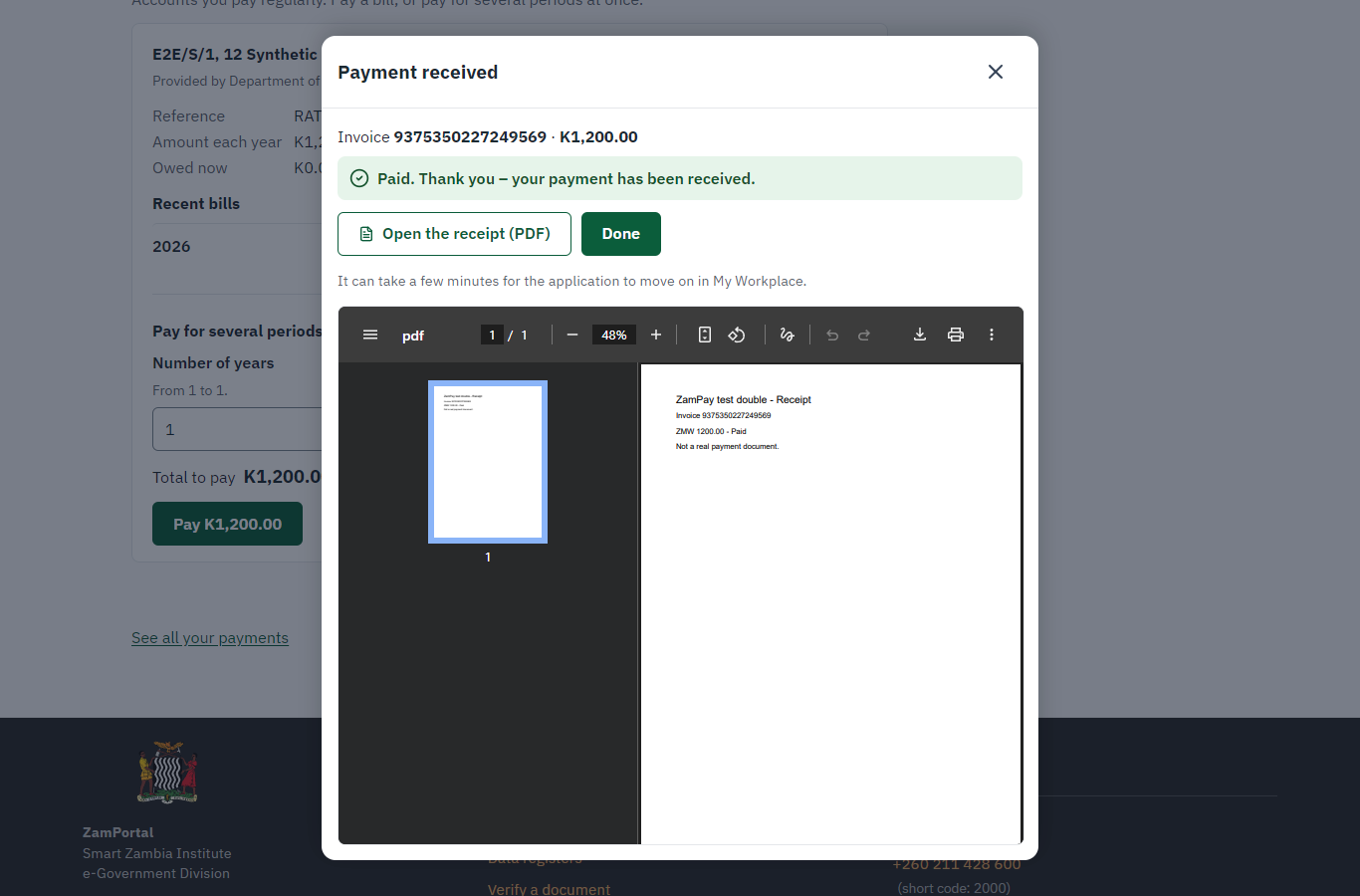
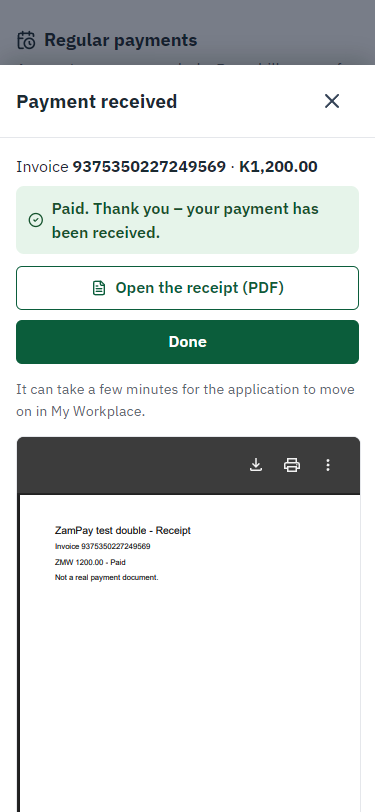
ZamPay reports the payment; it is allocated to the account on the server (penalties first, then the oldest bill), and the bill shows as paid.
Step 8. Verify the receipt
Anyone (public) · Public verification page
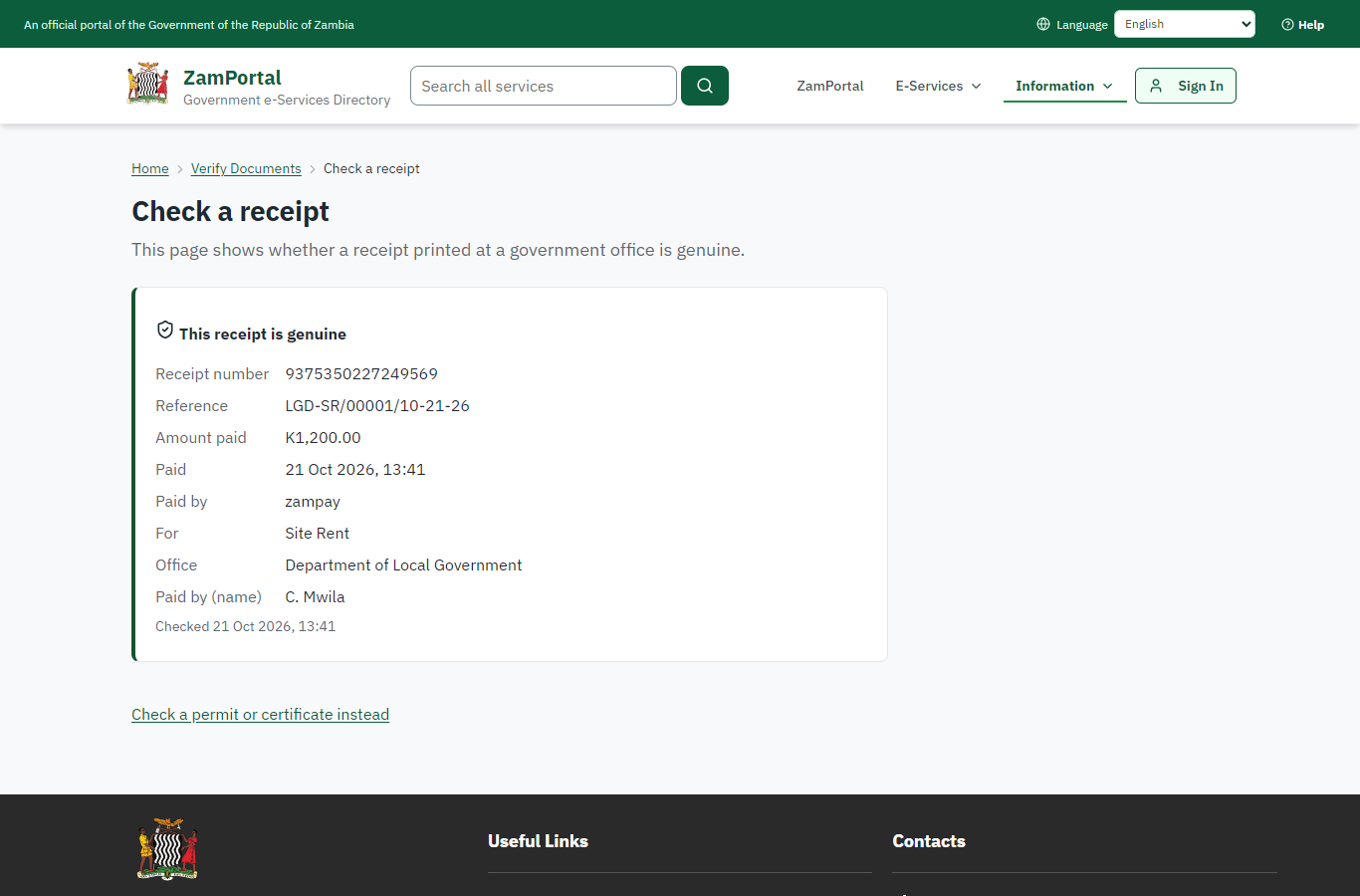
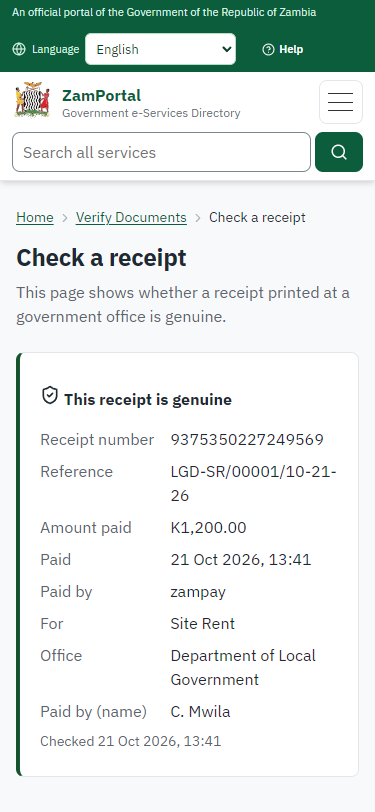
The receipt's QR code opens the public receipt page: genuine, its number and the payment it records. No sign-in is needed.
Step 9. The account and its statement
Case Officer · Back office
The office sees the account in Finance -> Billing: its bills, the payment allocated to them and the balance (nil). "Statement (PDF)" issues the statement of account: a numbered document, sealed by the platform, with a QR code to the public verification page.
Step 10. Verify the statement
Anyone (public) · Public verification page
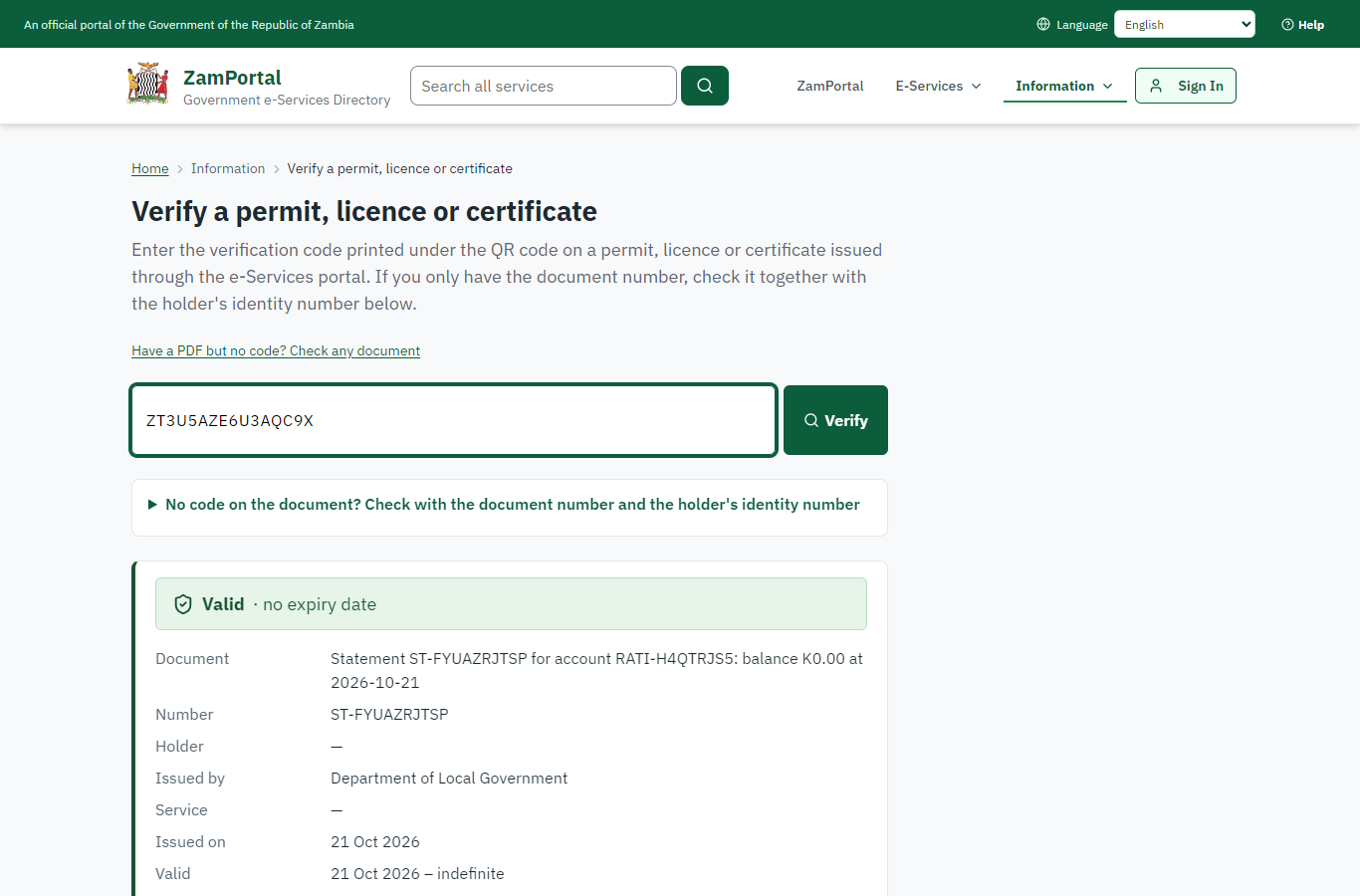
The QR code on the statement opens the public verification page: the statement's number, the account and the balance it shows at its date, and that it is genuine. No name is shown.
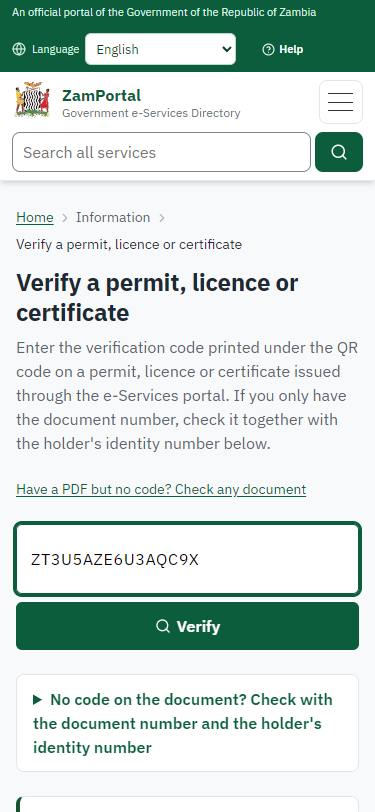
3. Payment
| Item | In the test run |
|---|---|
| Fee (as published) | the account's bill |
| Bill | BL-S2KRDYH46X (2026) |
| Invoice | 9375350227249569 |
| Amount | ZMW 1200.00 |
| Receipt | 9375350227249569 |
On screen: step 1 (Preview the billing run), step 2 (Approve the billing run), step 5 (See the account and what is owed), step 6 (Pay with ZamPay), step 7 (Payment received) in section 2.
4. Output documents
Statement of account (sealed PDF)
Issued on demand from the account's ledger: every bill and payment with the running balance. Numbered, sealed with the platform's electronic seal and verifiable by its QR code.
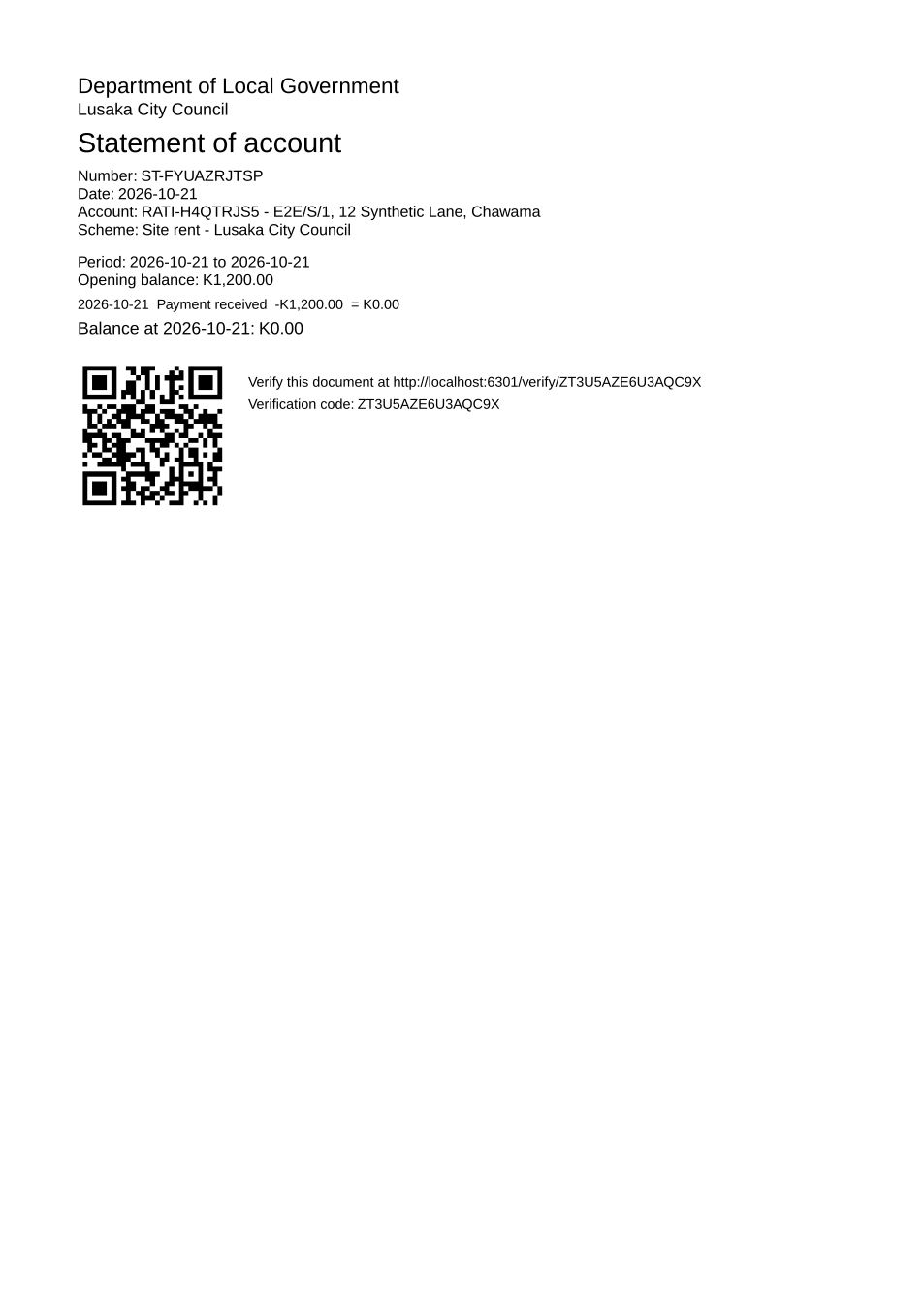
The issued PDF has 1 page; the image shows the first.
Fields
| Field | Value in the test run |
|---|---|
| Statement number | ST-FYUAZRJTSP |
| Account | RATI-H4QTRJS5 |
| Account | E2E/S/1, 12 Synthetic Lane, Chawama |
| Bill | BL-S2KRDYH46X: K1,200.00 for 2026 |
| Balance | nil after the payment |
Seal
| Item | Detail |
|---|---|
| Seal | the platform's electronic seal |
Verification
| Item | Detail |
|---|---|
| Where | The public verification page (/verify/<code>), the address under the QR code |
| What it shows | The statement number, the account and the balance at the statement date; never a name. |
On screen: step 8 (Verify the receipt), step 9 (The account and its statement), step 10 (Verify the statement) in section 2.
5. Notifications
| When | Channel | To | Message | Delivery |
|---|---|---|---|---|
| Payment received | in-app (portal bell) | the applicant | Payment received for LGD-SR/00001/10-21-26 - Your payment of ZMW 1200.00 for LGD-SR/00001/10-21-26 (Site Rent) has been received. Receipt: <ZamPay>/pdf?documentType=receipt&invoiceNumber=9375350227249569 | shown |
| Payment due (invoice raised) | +260 97* *** 567 | Payment due for application LGD-SR/00001/10-21-26 | skipped | |
| Payment due (invoice raised) | sms | +260 97* *** 567 | delivered | |
| Payment received | sms | +260 97* *** 567 | delivered |
Delivery: shown = in the portal's notification bell; delivered = the SMS gateway (a test double in this run) reported the text delivered; skipped = not sent on that channel (e-mail is not configured on the test installation, and some notices go out on one channel only); sent by the national portal = a ministry node handed the notice to the national portal, which texts and e-mails the citizen under its own name and the citizen's preferences. Addresses written <portal>, <ZamPay> stand for the national portal and ZamPay.
6. Legacy mapping
| Item | Detail |
|---|---|
| Replaces | Site Rent in the legacy ZIGS e-Services directory (ZIGS_Services) |
| Legacy service id | 662 |
| Legacy provider | Department of Local Government (LGD) under Ministry of Local Government and Rural Development |
| Legacy process | not recorded |
| Fee in the legacy system | none |
| Fee taken before submission | yes (as in ZIGS) |
| Time to issue (legacy) | not recorded |
| Legacy output templates | GS-1 Application for a Government Service: ZIGS_Forms_ZDA / GS1 GS-2 Notice of Government Action: ZIGS_Forms_Notices / GS-2.NoticeOfAction |
| Legacy address | https://ecouncils.gsb.gov.zm |
| How it was brought over | Imported by the platform's legacy catalogue importer (zcm-backend scripts/zigs/importLegacy.js) from the ZIGS snapshot: form, case types, fees, documents, process and output templates, then served by the new platform. |
7. Version and date
| Item | Detail |
|---|---|
| Document version | service v1, platform 39fb88e4 |
| Generated | 2026-10-21T11:41:23Z (by the end-to-end run, not edited by hand) |
| Service version | not versioned (configured directly) |
| Platform snapshot | backend 39fb88e4 portal 72805f0 back office 58e5946 |
| Test suite | e2e 2f82c10; one installation (combined); seed profile mihud |
| Journeys | 30-catalogue-service.spec.js: the office keeps the account and bills the period: finance previews and proposes, another finance officer approves - passed 30-catalogue-service.spec.js: the citizen finds the service at the council and pays the bill from the service's page - passed 30-catalogue-service.spec.js: the receipt verifies; the statement of account is sealed and its QR code verifies - passed |
| Result | 3 of 3 journey tests passed |
| Data | Synthetic test data on a local test installation; provider test doubles for ZamPass, ZamPay, SMS and signing. |